
Welcome to Diveplanner Tec & Rec!
Diveplanner is an application for recreational and technical scuba divers, on open circuit or closed circuit rebreather (CCR). It plans one or several dives of a day, with their contingency plans, the gas you need and the gas you carry, and your oxygen exposure. It works in metric or imperial units.
Diveplanner was designed as a safe and reliable tool for divers. It helps you plan technical and recreational dives quickly and easily, and share the schedule instantly with your dive buddy. Since version 2.0 it also blends your gases and keeps your logbook; version 2.1 adds the tides and tidal currents of any dive site; version 2.2 adds the Thalmann decompression algorithm of the U.S. Navy, and restores the true colors of your underwater photos and videos; version 2.3 shares a plan as a file your buddy can open and change, and keeps your saved plans in sync between your devices.
This guide introduces the main features and concepts of the application.
Minimum requirements
- an iPhone or iPad with iOS / iPadOS 17 or later
- a Mac with Apple silicon and macOS 14 Sonoma or later (Mac Catalyst)
- an Android phone or tablet with Android 9 (Pie) or later
Diveplanner Tec & Rec features and functionalities
The application has four tabs: Plan, Tables, Tools (the gas blender, the tides and the photo colors) and Log.
Planning module (Plan tab)
- Open circuit or closed circuit rebreather, multi-gas decompression dive schedules down to 300 m / 985 ft, in fresh water, salt water or dive computer standard salt water (EN 13319), at sea level or at altitude
- Bühlmann ZH-L16C decompression model, with user selectable gradient factors as conservatism, or the Thalmann algorithm of the U.S. Navy: VVal-79 for air and nitrox, XVal-He-9 for heliox rebreather dives
- Multi-level dive instructions
- Fully automatic gas switches (from the gases selected for the dive), or a switch depth chosen per gas, or a mix of both
- Fully automatic contingency plans: lost decompression or travel gas, too deep, too long, GF100, and the bailout plan for CCR
- Information, cautions and warnings for high or low ppO2, deep END, isobaric counter diffusion (ICD), CNS and OTU, and gas density
- The decompression chart of each plan: the profile, the ceilings of the tissues at GF 100 and at your gradient factors, and the leading tissue
- Gas requirement and gas weight; with your cylinders: pressure at the end of the dive, turn pressure, reserve and rock bottom, and the maximum bottom time your gas allows
- A dive day of consecutive dives, as many as you need, with their surface intervals, to account for residual saturation at the start of each dive
- A library of saved plans, with folders and search, synchronised between your devices with iCloud (iOS, iPadOS, Mac) or Google Drive (Android)
- Share a plan as a file your buddy opens and changes in Diveplanner, or as PDF schedules
- Print or share the dive schedules of the whole day as a PDF document, in a format suitable to be cut and taken underwater
Table module (Tables tab)
- Open circuit or closed circuit rebreather, multi-gas decompression dive table down to 66 m / 210 ft and 60 minutes of bottom time, in fresh water, salt water or EN 13319 salt water, at sea level or at altitude
- Bühlmann ZH-L16C decompression model with user selectable gradient factors, or the Thalmann algorithm of the U.S. Navy
- Previous dives of the day and surface intervals, to account for residual saturation
- Print or share the table as a PDF document
Tools (Tools tab)
- Gas blender: partial pressure blending of nitrox, trimix and heliox, from what is left in the cylinder, with Air, Nitrox 32 or Nitrox 36 as top-up gas, ideal or real gas; the best mix for a depth, from a maximum ppO2, END and gas density; the cylinder label of the blend: MOD, END and gas density at the MOD
- Tides: the tide heights of a day at any place at sea, with its high and low waters, from the nearest NOAA tide station or the EOT20 global tide model, and the tidal currents, slack waters and strongest currents of a nearby NOAA current station; the chart is read under your finger, to the minute
- Photo colors: the true colors of your underwater photos and videos, their blue or green cast, haze and missing red corrected, with the depth of the photo taken from your logbook
Logbook (Log tab)
- Log your dives by hand, from a plan, or download them from your dive computer, with its profile, stops, gases, gradient factors and sensor values
- Photos, sites on a map, statistics, search and filters
- Export (UDDF, Subsurface, CSV, PDF logbook, .divelog archive) and import (UDDF, Subsurface, .divelog), synchronised between your devices with iCloud (iOS) or Google Drive (Android)
Everywhere
- Metric or imperial units
- Translated into English, French, German, Spanish, Italian, Portuguese, Dutch, Polish, Russian, Korean, Japanese and Simplified Chinese
1.Application setup
Before using the planning and computation features of Diveplanner, you may want to adjust some parameters to your preferences, such as the units (metric or imperial), and your actual dive parameters such as breathing rates (SAC), ascent and descent speeds, and conservatism.
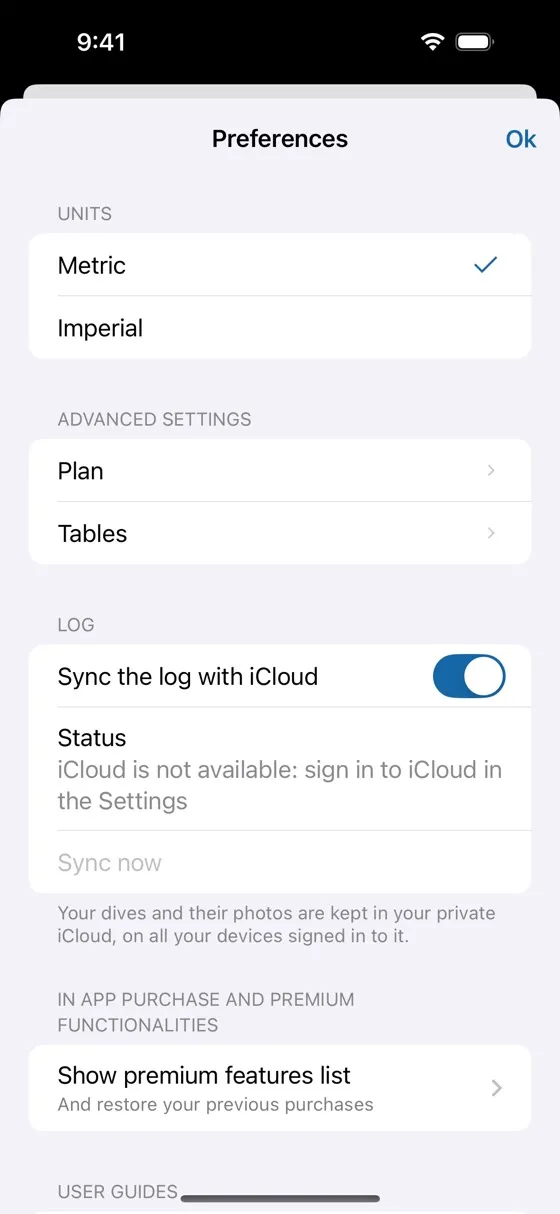
Application preferences
Open the application preferences with the gear button at the top left of each tab.
- Units: metric or imperial, for input and calculation of the plans, tables, blends and logbook. The units are global to all tabs of the application.
- Advanced settings: the parameters of the computations, one set for the Plan tab and one for the Tables tab (see below).
- Log: synchronisation of your logbook between your devices.
- In-app purchase and premium functionalities: the list of the premium features, their purchase, the free trial, and the restore of your previous purchases.
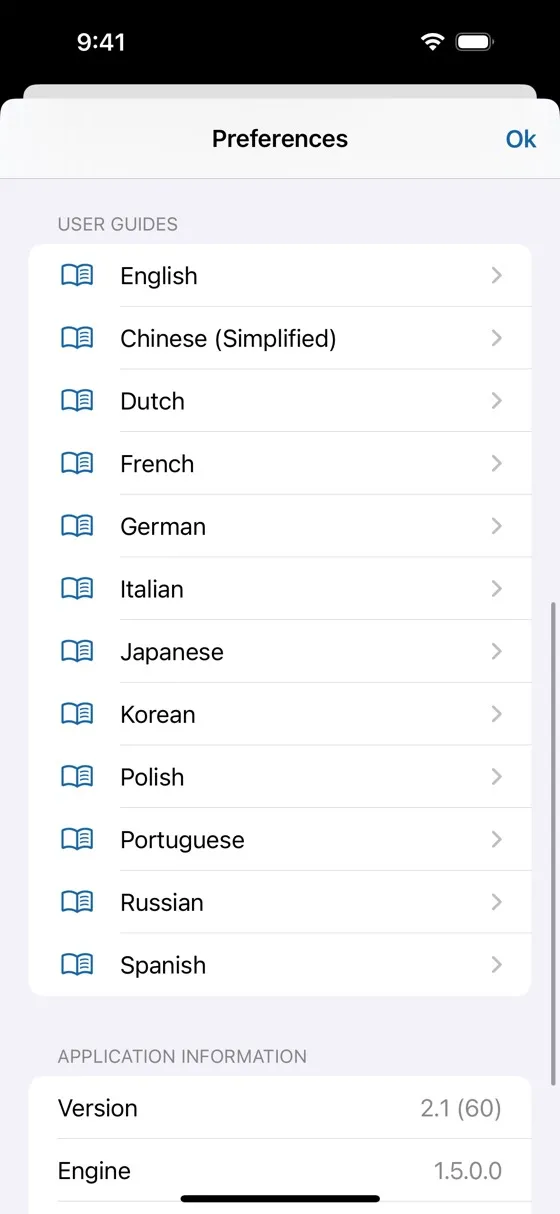
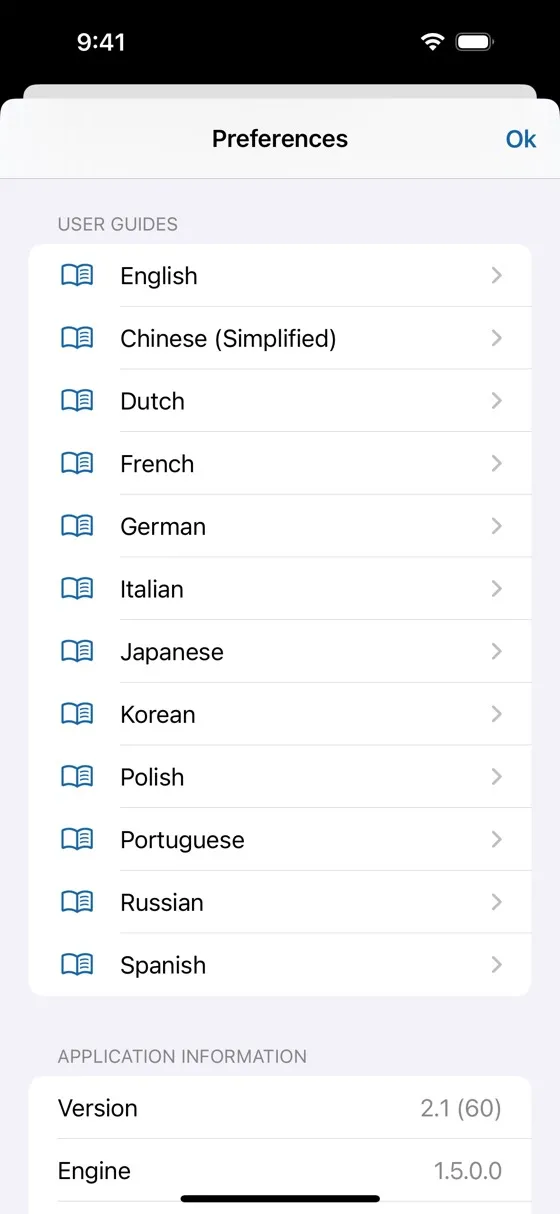
- User guides: this guide, in each of the 12 languages of the application; the guide in the language of the application comes first.
- Application information: the versions of the application and of its computation engine.
Premium features and free trial
Below Show premium features list you can see what each level includes, purchase it, or start a free trial of all features. The purchases are one-time purchases, not subscriptions. For a CCR dive, the diluent follows the rules of its level, and the bailout gases count in its number of gases.
| Level | Includes |
|---|---|
| Rec | One gas: air or nitrox up to 40 % oxygen, no helium; maximum depth 66 m / 210 ft |
| Tec Basic | Everything in Rec, plus up to 3 gases: nitrox up to 100 % oxygen, normoxic trimix and triox (every gas at least 18 % oxygen); maximum depth 66 m / 210 ft; the maximum bottom time of open circuit plans |
| Tec Advanced | Everything in Tec Basic, plus unlimited gases, unlimited depth, hypoxic trimix; the maximum bottom time of CCR plans |
| Free trial | All the features of Tec Advanced, free, for 2 weeks, once (iOS and Android) |
Restore purchases recovers the levels you already bought, for instance after reinstalling the application or on another device signed in to the same Apple or Google account.
Advanced settings
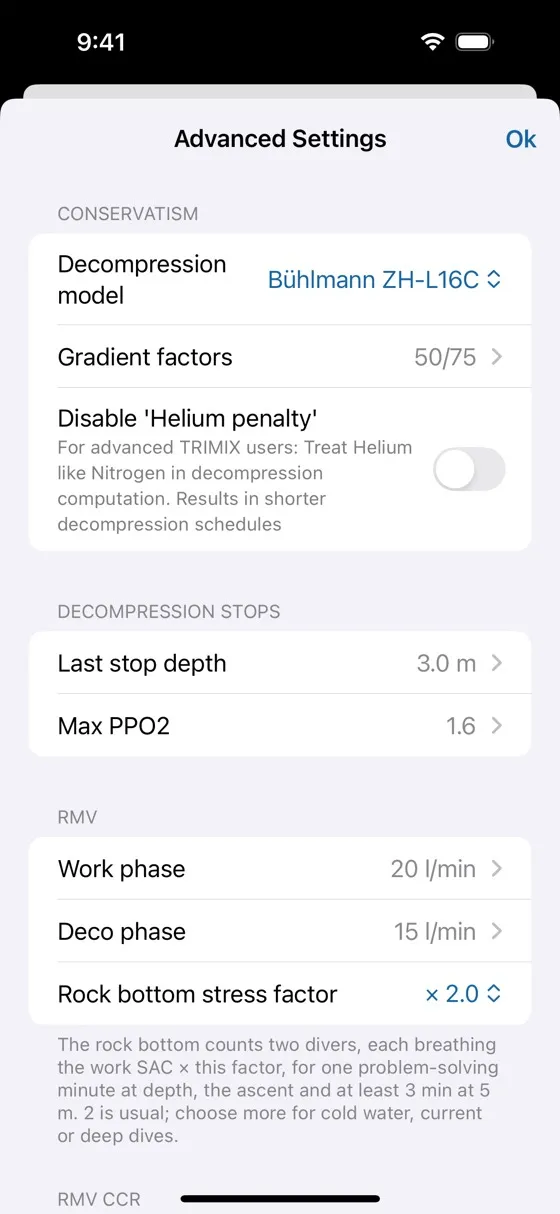
Open Advanced settings › Plan or Advanced settings › Tables in the preferences. The advanced settings hold important parameters of the dive schedules, tables and gas requirements:
- Conservatism: decompression model and gradient factors
- Disable the “helium penalty”
- Decompression stops: last stop depth and maximum ppO2
- Breathing rates (RMV) for the work and decompression phases
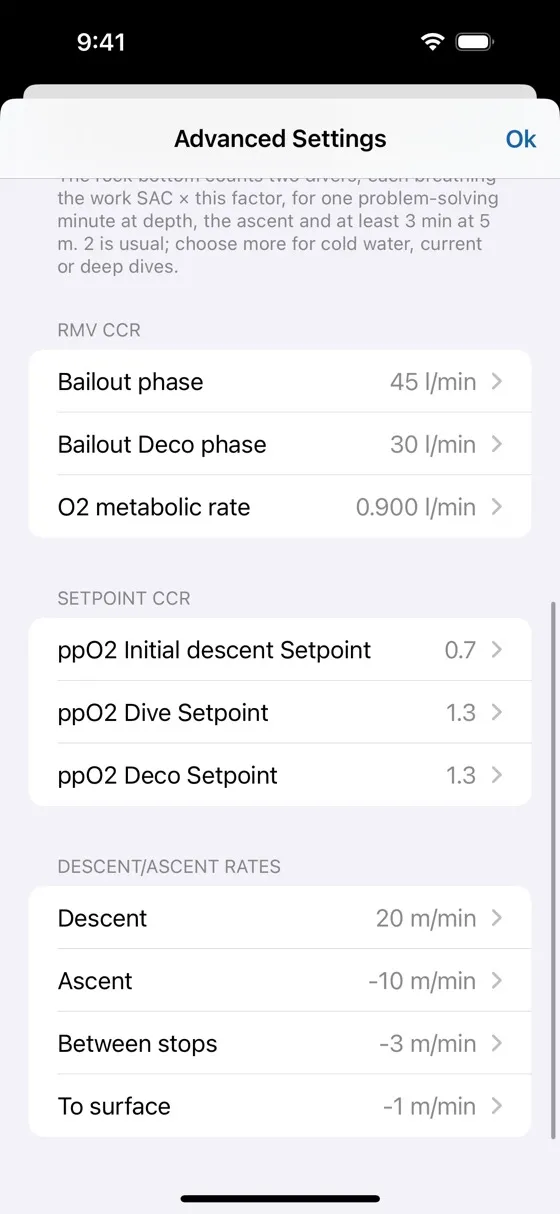
- Breathing rates in CCR bailout, and the O2 metabolic rate
- CCR setpoints
- Descent and ascent rates of the phases of the dive
Decompression model
Diveplanner computes the decompression with one of two models, chosen here or, for a plan, in its Dive settings › Conservatism (see chapter 2):
- Bühlmann ZH-L16C, the model of most dive computers, with gradient factors as conservatism (below). It covers every gas, on open circuit and CCR.
- Thalmann algorithm (U.S. Navy EL-DCM), the algorithm of the U.S. Navy decompression tables. Its conservatism is that of its parameter set alone: the gradient factors and the helium penalty do not apply to it.
- VVal-79: air and nitrox dives; it does not cover gases containing helium.
- XVal-He-9 2.3 %, 4 % or 5 %: closed circuit rebreather dives on a heliox diluent, with set points from 0.7 to 1.3, down to 91 m (300 ft). The percentage is the estimated risk of decompression sickness the parameters were fitted to: the lower, the longer the decompression. These parameters do not cover open circuit, so the bailout plan is computed with Bühlmann ZH-L16C, at the gradient factors of the plan.
When a dive is outside what the chosen parameters cover, the plan is not computed: it says why, with a button to its conservatism. With the Thalmann algorithm, the decompression chart shows no GF 100 ceiling.
Adjusting conservatism
Diveplanner uses gradient factors (GF) to add a safety margin to the dive schedules. Gradient factors limit the supersaturation of your tissues to a percentage of the maximum supersaturation allowed by the model (the M-value). There are two factors:
- GF low is the percentage of the M-value allowed at depth. The lower this value, the more conservative the schedule and the deeper the first decompression stop.
- GF high is the percentage of the M-value allowed when you surface. The lower this value, the more conservative the schedule and the longer the shallow stops.
GF high is usually higher than GF low, so that the stops progress from depth to the surface. Very low values give extremely conservative dives, with very long decompression. Examples:
- GF 10/10 is extremely conservative and probably impractical for diving
- GF 20/50 is quite conservative and results in longer dives
- GF 45/75 is moderately conservative
- GF 100/100 adds no conservatism at all to the model
Conservatism is a personal choice. We recommend that you get familiar with decompression models, M-values and gradient factors to understand which values suit you best. The conservatism of a plan can also be changed from its Dive settings (see chapter 2).
Disable the “helium penalty”
Recent decompression research suggests that computing helium with its own, faster half-times makes trimix dives over-conservative, with longer and deeper stops. This setting lets advanced trimix divers compute helium like nitrogen, which shortens the decompression. Disabling the helium penalty is a personal choice, to be made only if you fully understand this concept.
Last stop depth and maximum ppO2
The last decompression stop can be set between 3 m and 7 m (10 ft to 20 ft); the default is 3 m (10 ft). The maximum ppO2 is the limit used during the decompression, to choose the gas switch depths (1.6 by default).
Breathing rates (RMV / SAC)
The respiratory minute volume (RMV), or surface air consumption (SAC), is your breathing rate as a volume per minute at the surface. You can set different values for the work phase (descent, bottom, ascent to the first stop) and for the decompression phase. They are used to compute the gas requirement of a plan and, with your cylinders, the pressures and the rock bottom.
Breathing rates in CCR
The CCR bailout breathing rates are used to compute the gas requirement of the bailout plan.
The O2 metabolic rate estimates the oxygen consumed during a CCR dive.
CCR setpoints
The setpoints are used to compute the inert gas uptake and the decompression in each phase of a CCR dive. The initial descent setpoint is used from the surface to the depth of the first level, then the dive setpoint through the dive; the deco setpoint is used from the first decompression stop.
Descent and ascent rates
Diveplanner comes with standard descent and ascent rates, which you may adapt to your diving style. They set the duration of the descent and ascent phases, and so the inert gas uptake and release. Four rates can be adjusted:
- Descent
- Ascent from the bottom to the first stop
- Ascent between stops
- Ascent from the last stop to the surface
2.The dive planner (Plan tab)
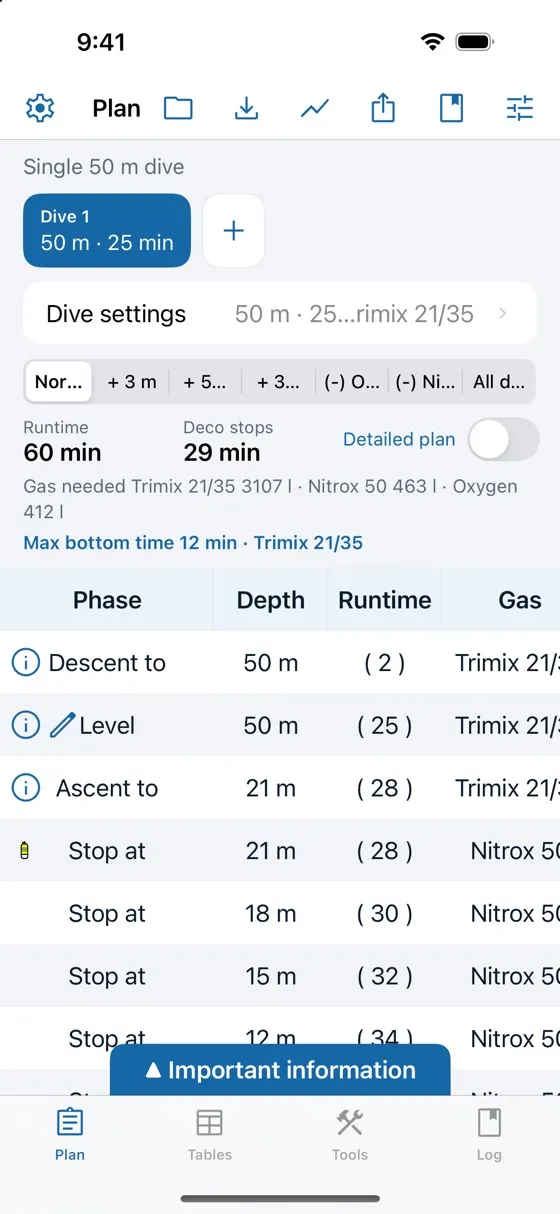
The Plan tab plans multi-level, multi-gas dives. From the type of dive (open circuit or CCR), the gases, the conditions and the conservatism, it computes the normal plan and the contingency plans, and the gas requirement. The schedule is shown in simple or detailed mode, with the descent, levels, ascent, gas switches and decompression stops. It warns you of ppO2, setpoint, CNS/OTU, ICD, END and gas density issues. Several dives can form a dive day, to account for residual saturation and surface intervals.
The Plan screen
- Toolbar: preferences (gear), saved plans (folder), save the plan, the decompression chart, share the dive schedules, log this dive (book), and the advanced settings of the plan.
- Dive day: the dives of the day, with the surface intervals between them, and + to add a dive.
- Dive settings: the levels, gases, conservatism, conditions and cylinders of the selected dive.
- Plan tabs: the normal plan and its contingency plans.
- Summary: runtime, total decompression time, gas needed and, with cylinders, the maximum bottom time.
- Schedule, then the cylinders and the oxygen toxicity (CNS, OTU) of the dive.
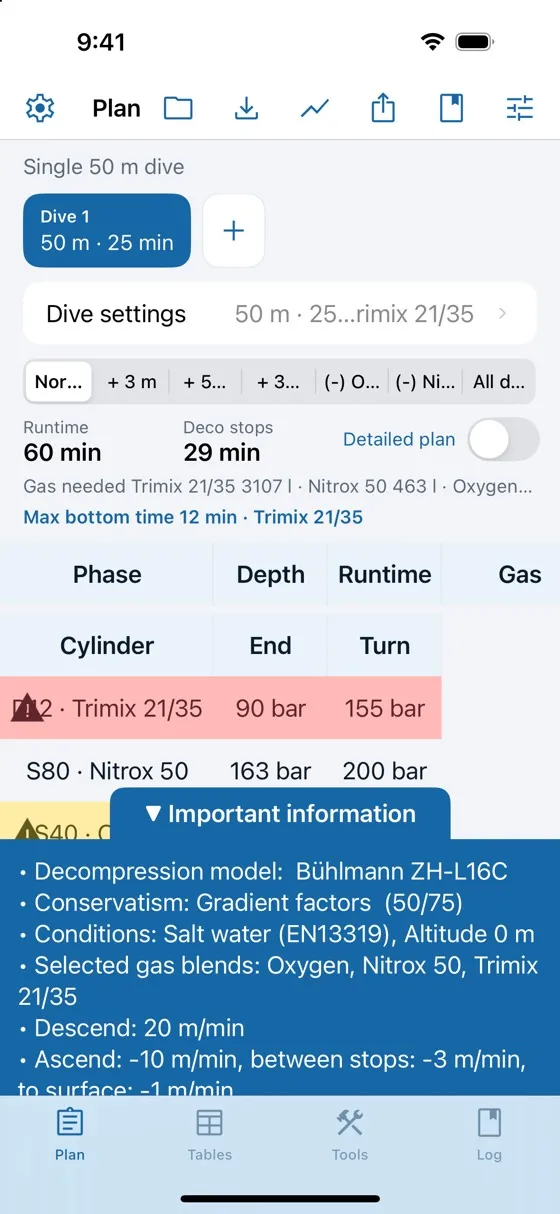
- Important information: the parameters used for the computation.
The schedule and all contingency plans are recomputed automatically whenever a parameter changes.
Dive settings
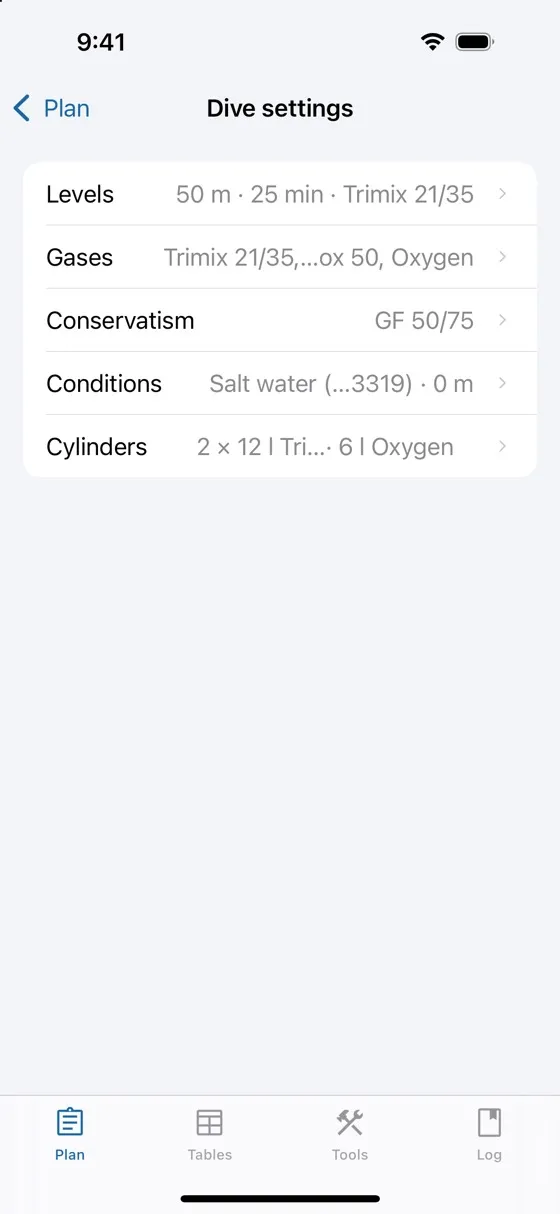
Tap Dive settings to set up the selected dive. Each row sums up its current value:
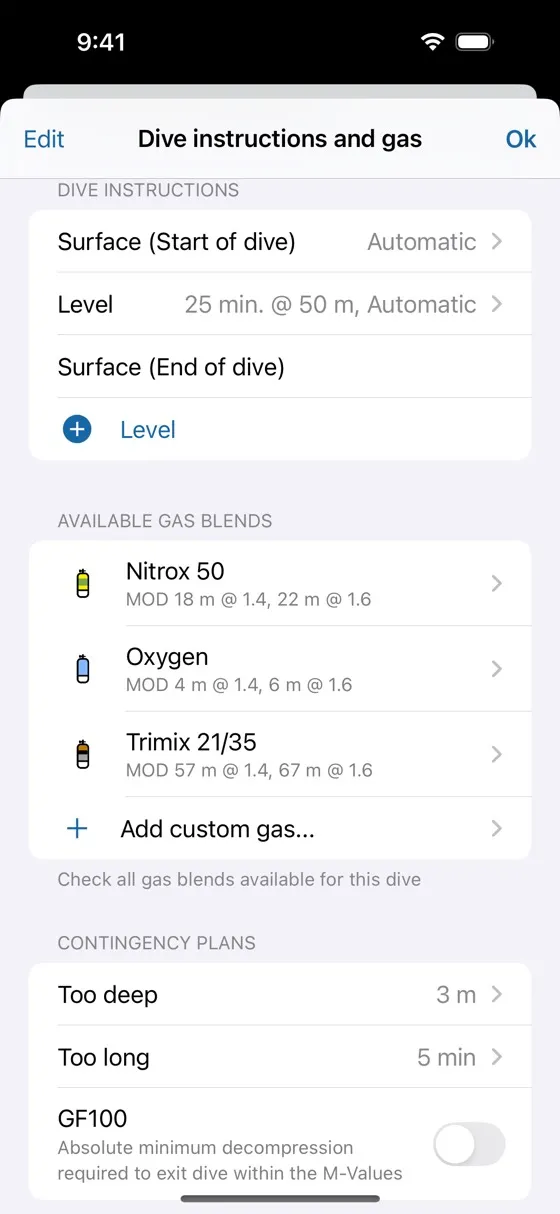
- Levels: breathing apparatus, dive instructions (levels), gases and contingency plans
- Gases: the same screen, at the gases
- Conservatism: the decompression model and the gradient factors of this plan
- Conditions: water type, altitude and pressure at sea level
- Cylinders: the cylinders you carry (see chapter 3)
Levels and gases
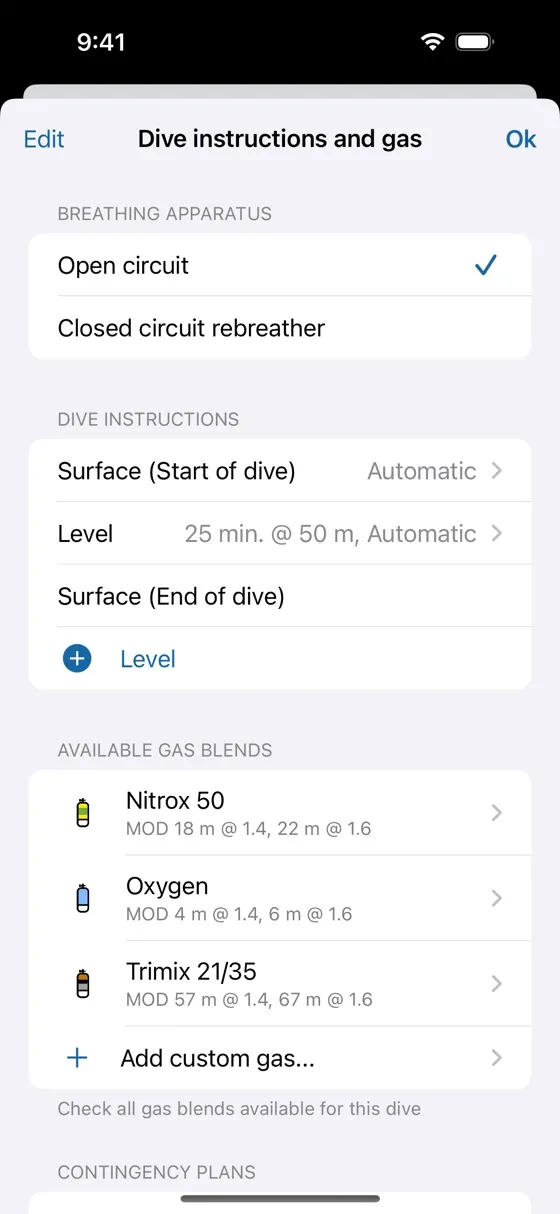
- Breathing apparatus: open circuit or closed circuit rebreather. For a CCR dive, choose the diluent and the bailout gases.
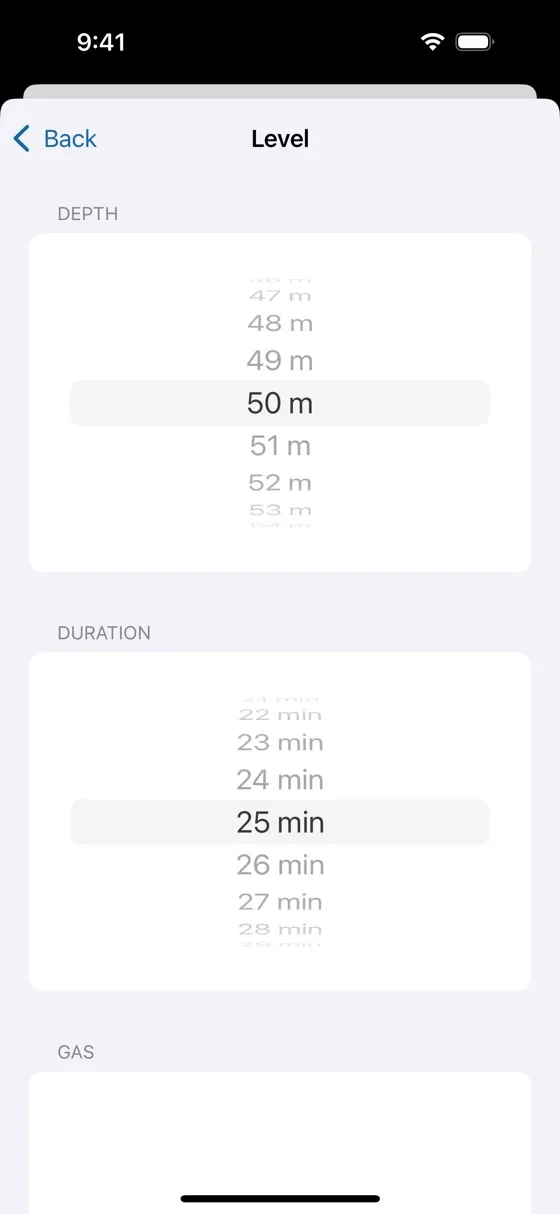
- Dive instructions: tap a level to change its depth, duration and gas. + Level adds a level; Edit reorders or deletes levels. The gas of a level can be Automatic: the planner then chooses the best of the selected gases.
- Available gas blends: check the gases available for this dive. Add custom gas… creates a new blend from its oxygen and helium fractions; the maximum operating depths (MOD) at ppO2 1.4 and 1.6 are shown under each gas.
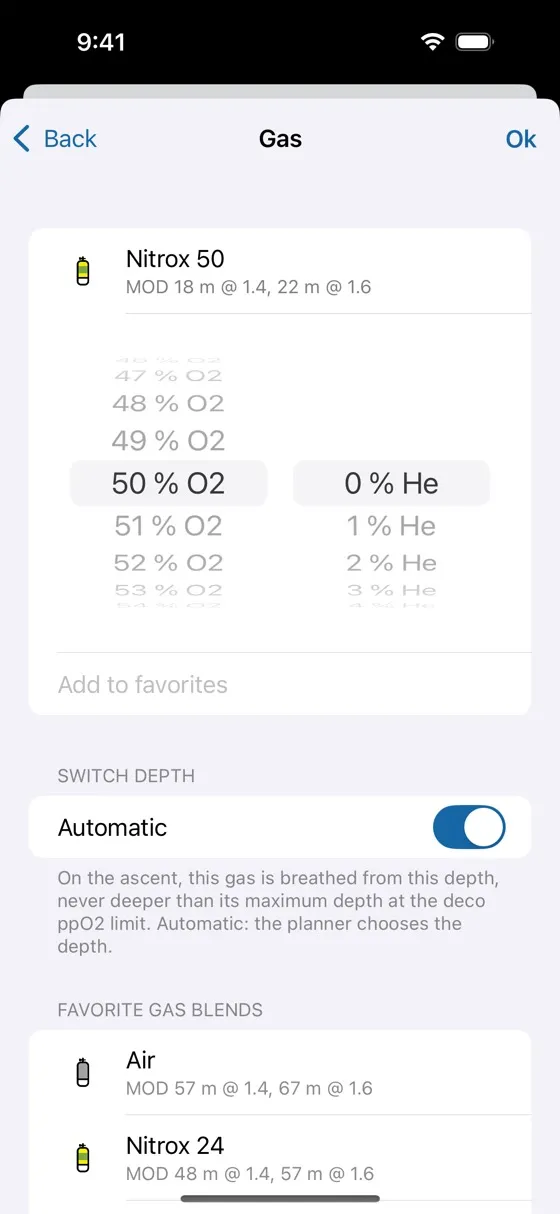
- Switch depth: in a gas, Automatic lets the planner choose the depth where you switch to this gas on the ascent. Turn it off to set the depth yourself; it can never be deeper than the MOD of the gas at the decompression ppO2 limit.
- Favorite gas blends: your usual gases, one tap away. Add to favorites keeps the gas being edited among them.
Contingency plans
At the bottom of the screen, set Too deep and Too long to compute the plans of a dive deeper or longer than planned, and enable GF100 to compute the absolute minimum decompression, which exits the dive within the M-values.
If several gases are selected, the plans for a lost gas are computed automatically: they appear as tabs above the schedule, named like “(-) Oxygen” for the loss of the oxygen, “(-) Nitrox 50” for the loss of the Nitrox 50, and so on.
For a CCR dive, the bailout plan is automatic: it starts at the end of the level that requires the most bailout gas, and uses the selected bailout gases.
Conservatism and conditions
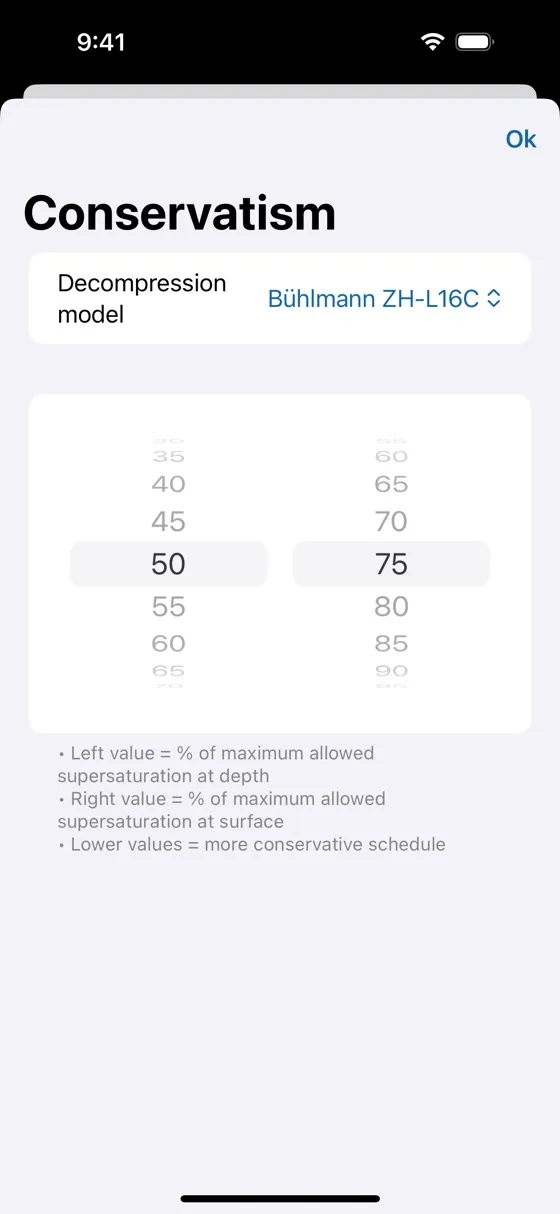
Conservatism sets the decompression model of this plan, Bühlmann ZH-L16C or the Thalmann algorithm with its parameter set (see Decompression model in chapter 1), so that you can compute the same plan with both. With Bühlmann, it sets the gradient factors: GF low on the left, GF high on the right (see Adjusting conservatism in chapter 1). With the Thalmann algorithm, the conservatism is that of its parameter set.
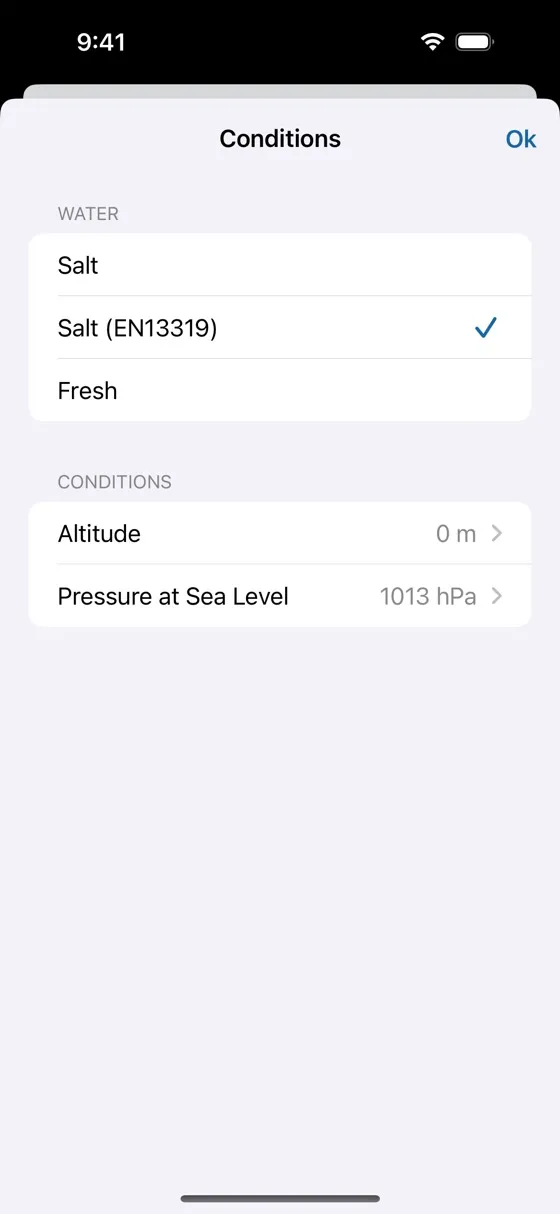
Conditions sets the type of water — salt, salt EN 13319 (the standard of dive computers) or fresh — and the altitude of the dive site. Optionally, set the current pressure at sea level, as found in the weather forecast.
The plan tabs
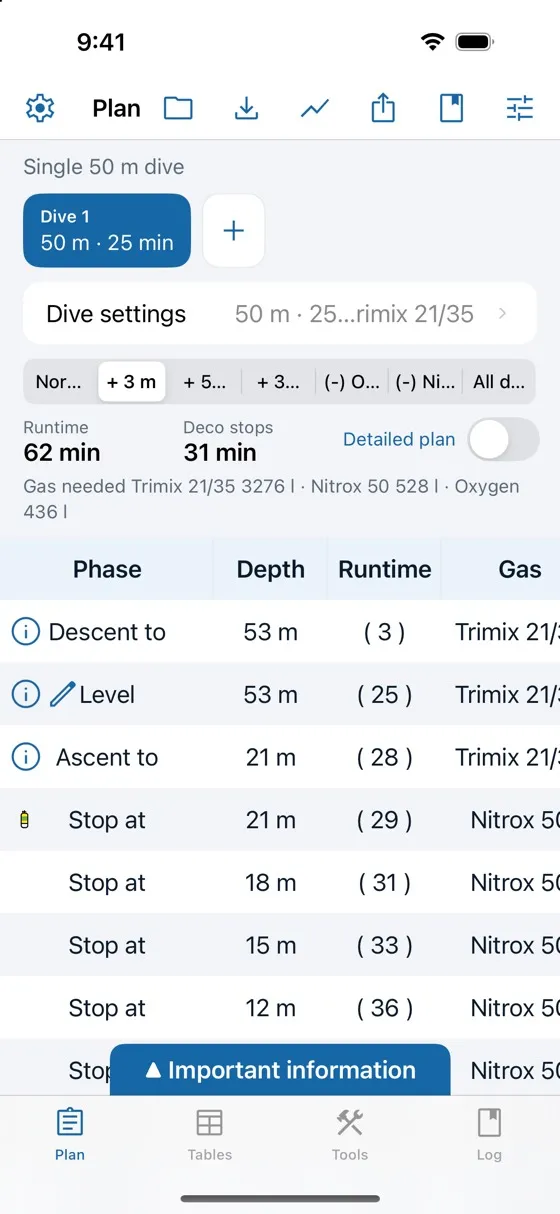
Above the schedule, one tab per plan: Normal (CCR for a rebreather dive), then the contingency plans:
- + 3 m, + 5 min and + 3 m/+ 5 min: too deep, too long, and both, with the values you set
- GF100, when enabled
- one (-) gas tab per lost decompression gas, and All deco gas lost when you carry two or more decompression gases
- Bailout (and Bailout - GF100) for a CCR dive
Tap a tab to see its schedule and its gas requirement.
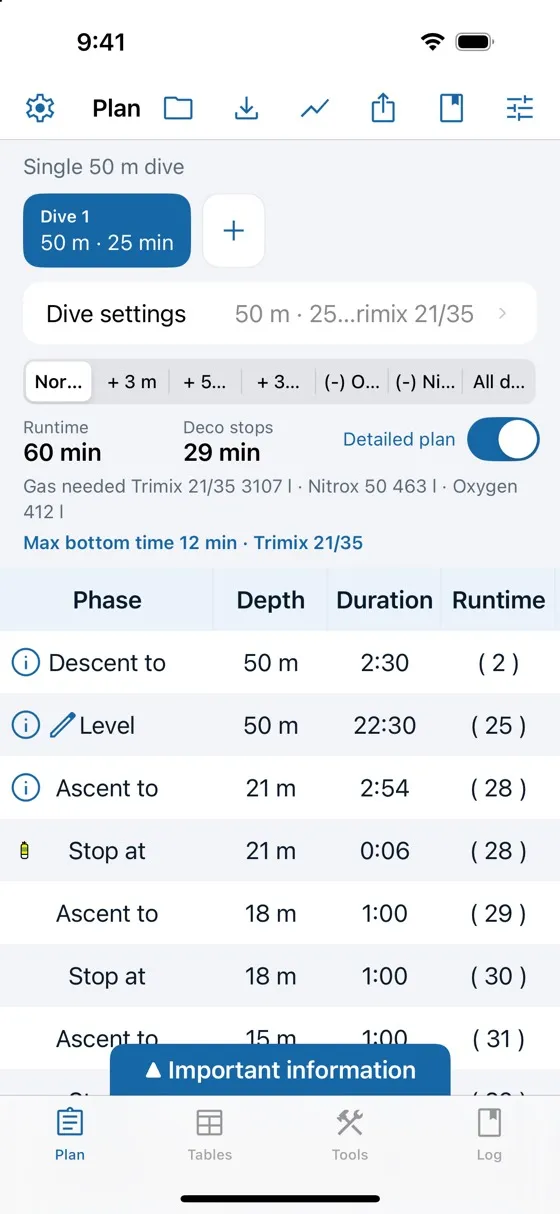
The summary shows the runtime, the total time of the decompression stops and the gas needed per gas.
Detailed plan
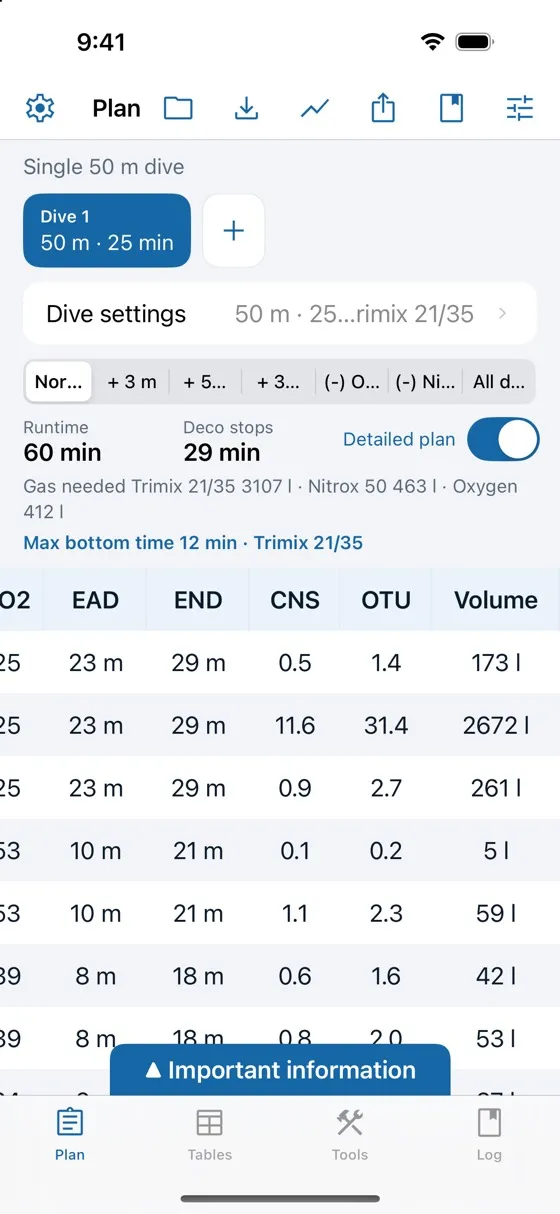
Turn on Detailed plan to see the duration of each phase, the ascents between stops, and more columns: ppO2, EAD, END, CNS, OTU and the volume of gas of each phase. Scroll the schedule sideways to see all columns.
The decompression chart
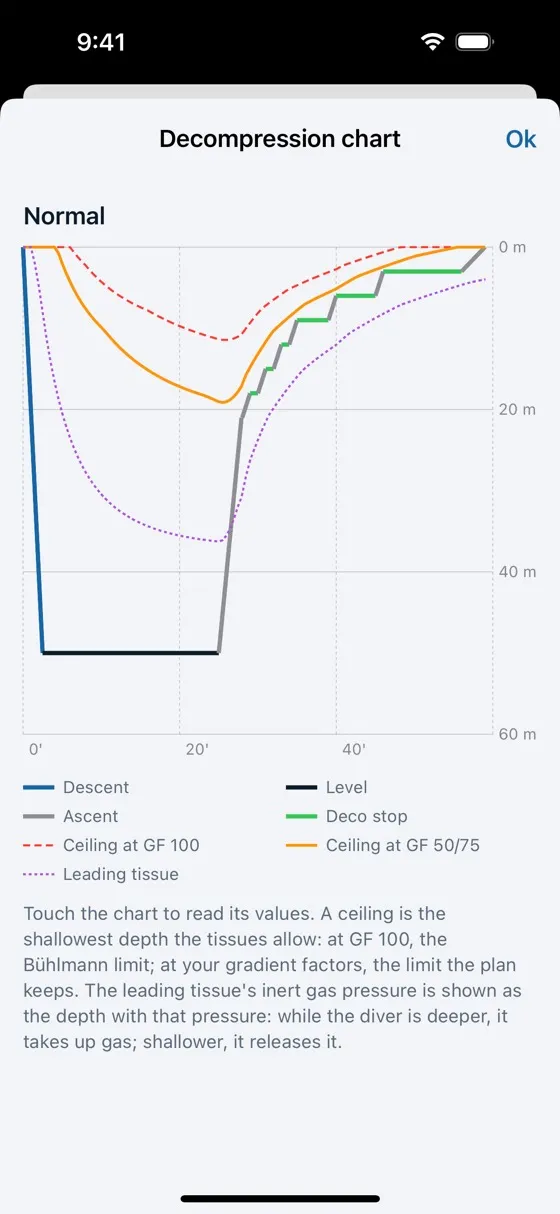
The chart button of the toolbar draws the plan of the selected tab — the normal plan or a contingency plan — as depth against time:
- the profile, coloured by phase: descent, levels, ascents, decompression stops and safety stop;
- the ceiling at GF 100 (dashed): the shallowest depth the tissues allow at the Bühlmann limit, their M-values;
- the ceiling at your gradient factors: the limit the plan keeps. It follows GF low at the first stop and deeper, and moves towards GF high as you ascend. The stops stay below it;
- the leading tissue (dotted): the inert gas pressure (nitrogen and helium) of the most loaded tissue, shown as the depth with the same ambient pressure. While you are deeper than this line, the tissue takes up gas; shallower, it releases it.
Touch the chart and slide your finger along it to read the time, depth, ceilings and leading tissue at that moment.
The dive day: consecutive dives
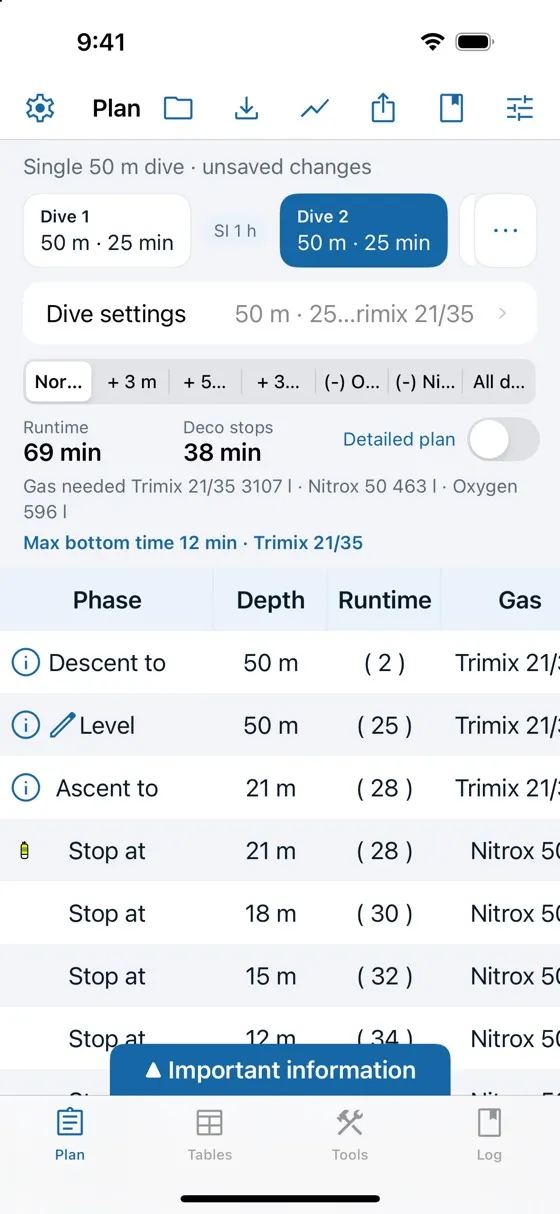
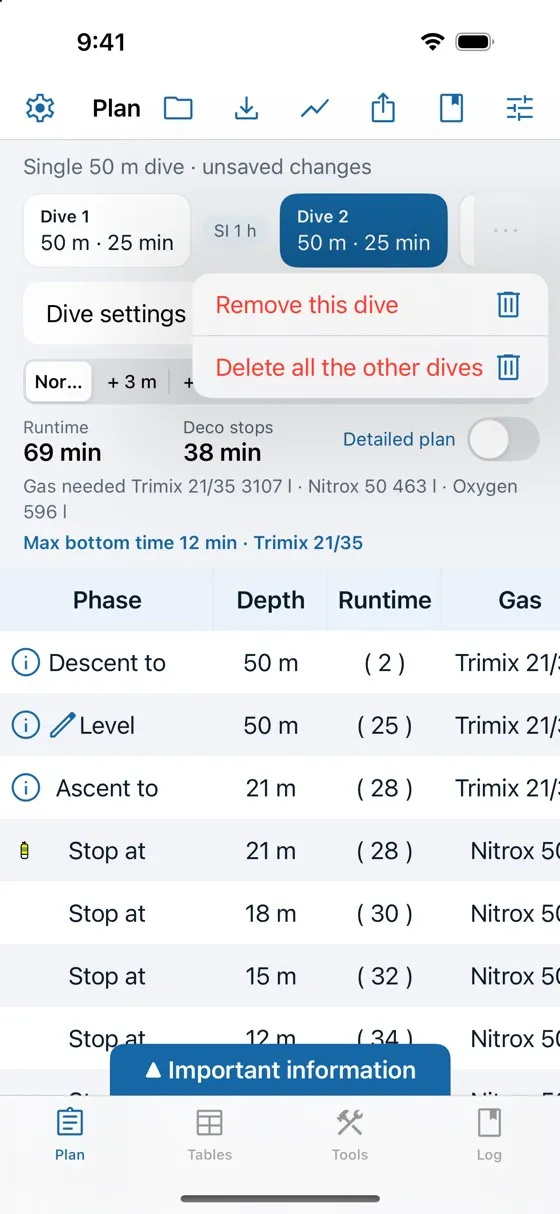
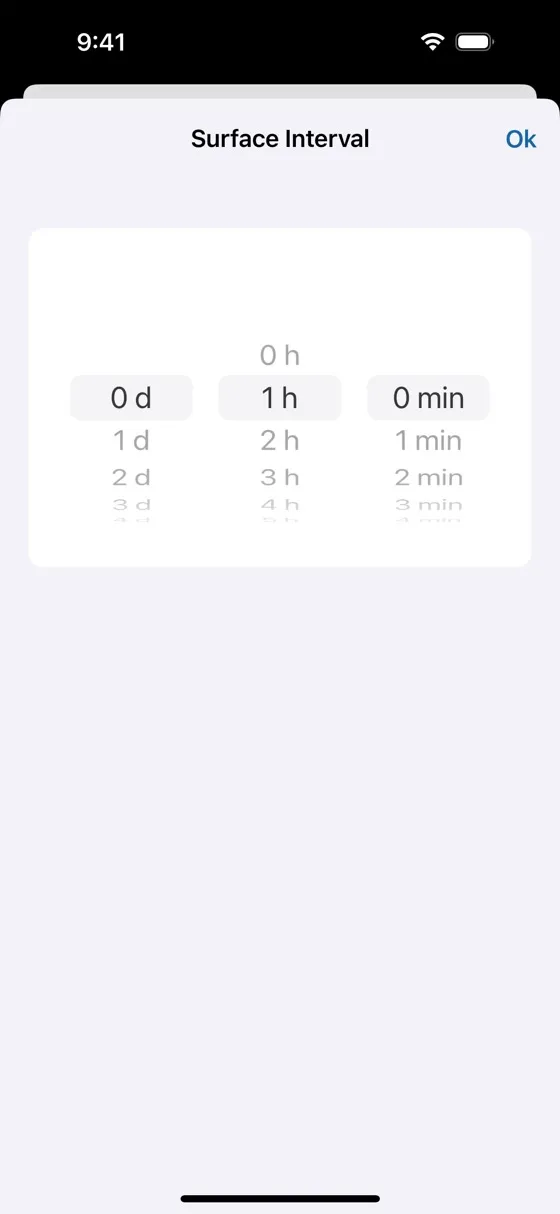
- Tap + next to the dives to add a dive after the current one, then set its dive settings. Each dive is computed with the residual saturation of the previous dives and the surface intervals. There is no limit to the number of dives of a day.
- Tap a dive to select it: the schedule, the dive settings and the tabs are those of the selected dive.
- Tap the SI chip between two dives to change the surface interval.
- The ⋯ menu removes the selected dive, or deletes all the other dives of the day.
- The PDF document contains all the dives of the day.
Warnings, cautions and information
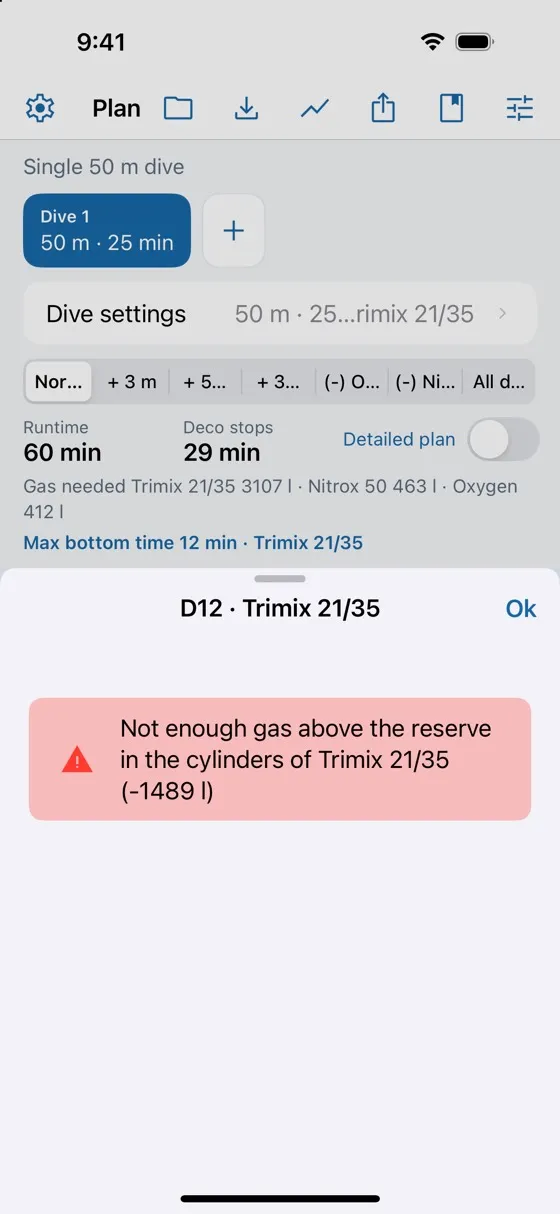
The schedule tells you about possible issues by highlighting a phase, a cylinder or the oxygen toxicity values in yellow (caution) or red (warning). A non-critical remark shows a small blue (i) in front of the phase. Tap the highlighted phase, or the (i), to read the description.
| Checked | Limits |
|---|---|
| ppO2 | 1.4 at the bottom and 1.6 during decompression: warning above 1.45 outside decompression, error above 1.65; hypoxic gas: error below 0.16 (below 0.18 deeper than 3 m) |
| CCR | diluent ppO2 above the setpoint; setpoint that cannot be reached (information) |
| END | information above 40 m, warning above 56 m |
| Gas density | information above 5.2 g/l, warning above 6.2 g/l (on the loop for CCR) |
| CNS | warning above 80 %, error above 100 %, for the dive and for the day |
| OTU | information above 300, error above 850, for the dive and for the day |
| ICD | isobaric counter diffusion at a gas switch: risk of inner-ear DCS; supersaturation above the GF or the M-value |
| Gas | not enough gas above the reserve; end of the dive below the rock bottom; a gas carried in no cylinder |
The same warnings are listed in the PDF document.
Saved plans
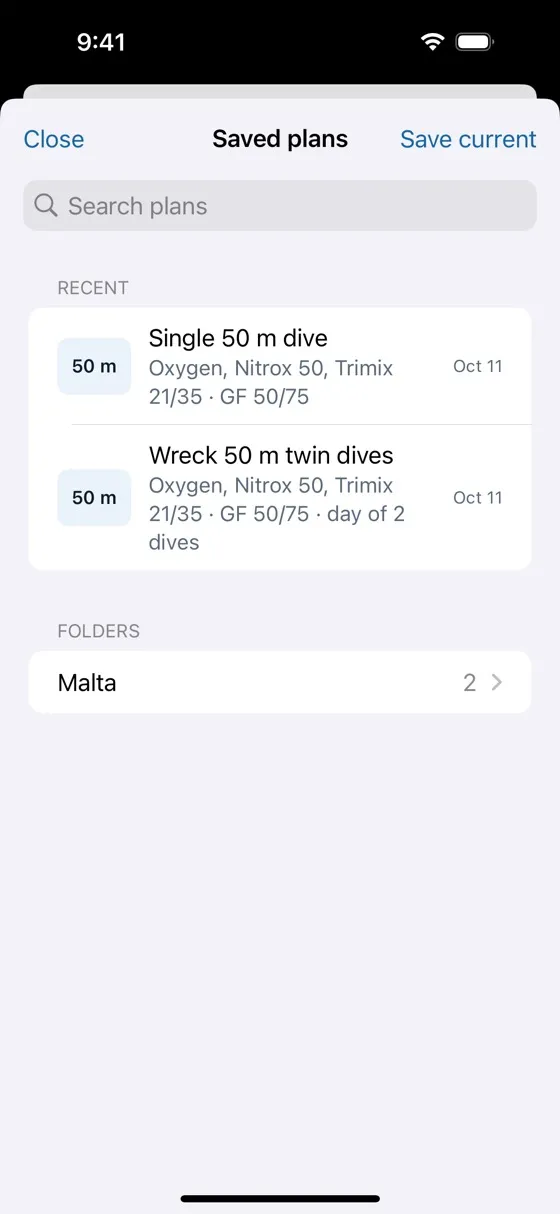
The folder button opens your saved plans; the save button next to it saves the current plan — the whole dive day, with its dives, gases, conditions and cylinders.
- Save current saves a new plan with a name and an optional folder, or updates the saved plan you opened.
- Recent lists your last plans; Folders groups them. Search by name or folder.
- Tap a plan to open it: it replaces the current plan, after a confirmation.
- Swipe a plan, or long press it, to rename or move it, duplicate, share or delete it.
- A shared plan is a .diveplan file. Received by Files, Mail, AirDrop or a messaging app, it opens in the Plan tab after a confirmation and is kept in your saved plans. It keeps its sender's settings (decompression model, gradient factors, breathing rates): adjust them in the dive settings.
- Synchronisation: turn on Sync saved plans in the preferences to keep your saved plans on all your devices: in your private iCloud on iOS, iPadOS and Mac, in a private folder of your Google Drive on Android.
3.Cylinders and gas planning
Without cylinders, Diveplanner gives the volume of each gas needed by the plan. Describe the cylinders you carry and it also checks that you have enough gas, gives the pressures to watch underwater, and the longest bottom time your gas allows. Cylinders are available at every level; the maximum bottom time needs Tec Basic (Tec Advanced for a CCR dive).
Describing your cylinders
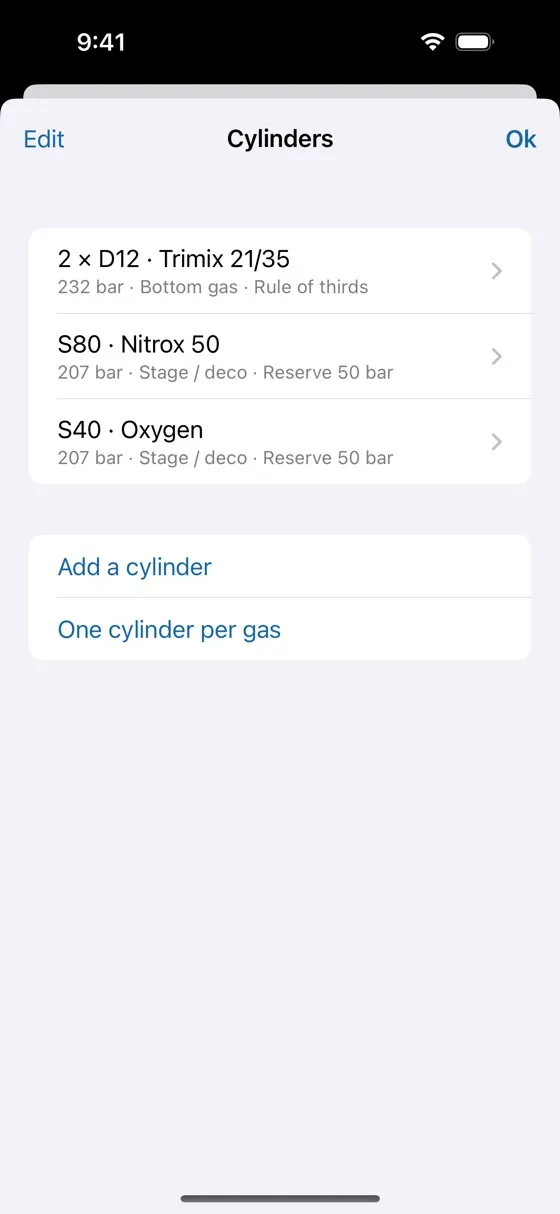
- Open Dive settings › Cylinders. Add a cylinder creates one; One cylinder per gas creates a cylinder for each gas of the dive.
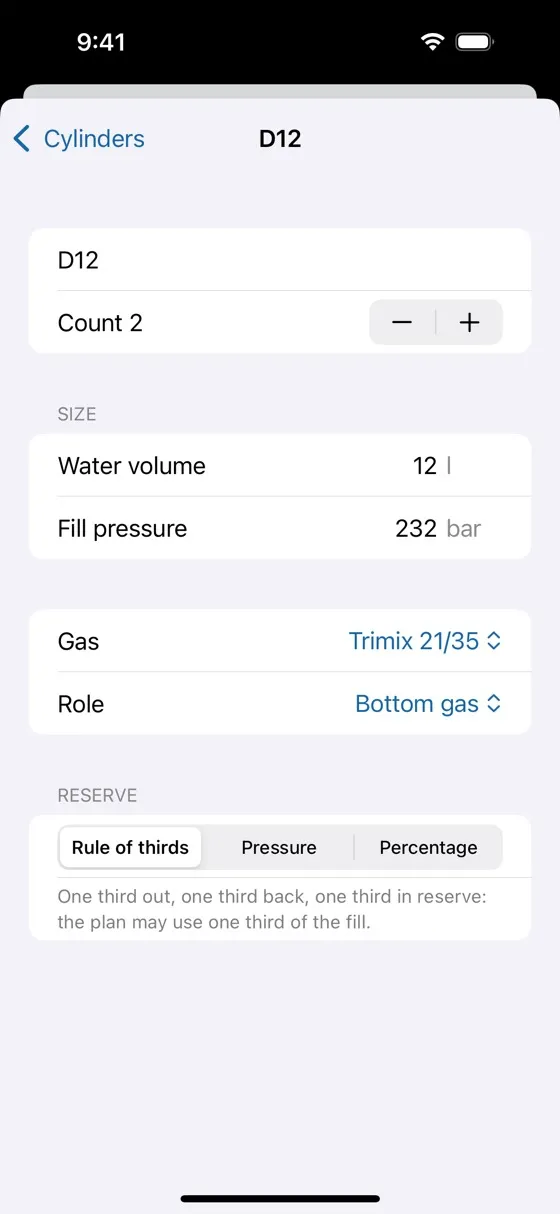
- For each cylinder: its name, the count (2 for a twin set or two sidemounts), the water volume, the fill pressure, the gas it contains and its role (bottom gas, stage / deco; for a CCR dive oxygen, diluent or bailout). One cylinder per gas proposes 12 l at 232 bar for the bottom gas and 7 l at 200 bar for the others (3 l for the oxygen and diluent of a CCR).
- Reserve: the gas you keep untouched in the cylinder.
- Rule of thirds: one third out, one third back, one third in reserve — the plan may use one third of the fill
- Pressure: a fixed reserve pressure, for instance 50 bar
- Percentage: a percentage of the fill pressure
Cylinders in the plan
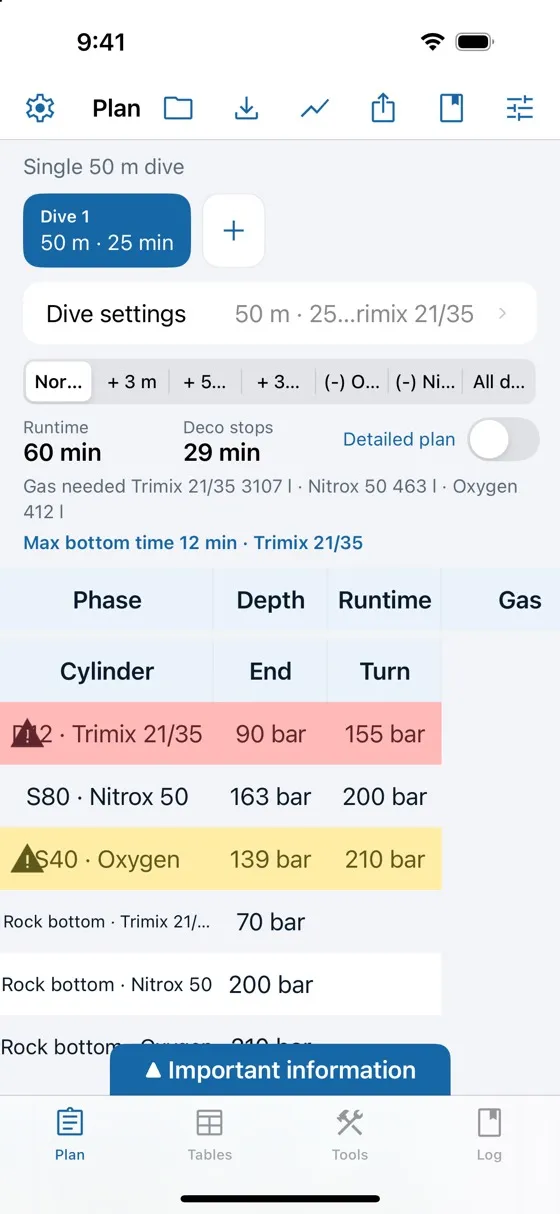
Below the schedule, the table of the cylinders gives for each one:
- End: the pressure left at the end of the dive, if you breathe as set in your breathing rates
- Turn: the pressure at which you end the bottom phase and start the ascent — two thirds of the fill with the rule of thirds, otherwise the higher of the reserve and the rock bottom; never below the rock bottom
- Rock bottom (one row per gas): the gas needed to bring two divers to the surface from the worst point of the dive — one minute to solve the problem at depth, then the whole ascent with its stops and at least a 3-minute safety stop at 5 m, each diver breathing the work breathing rate × the rock bottom stress factor (2 by default, so the two divers breathe four times your work rate; set it in the diver settings, under the breathing rates). It is computed from the end of every level, the largest value is kept, rounded up to 10 bar (100 psi), and never less than 50 bar (500 psi). For a CCR dive, the bailout gas is checked instead.
A cylinder is shown in red when the plan needs more gas than you may use above its reserve, and in yellow when you would start the ascent below its rock bottom (the gas you breathe on the normal ascent may then take you below it: it is kept for an emergency at the end of the bottom phase). Tap it to read the warning: it gives the missing volume, or the rock bottom pressure.
Maximum bottom time
Under the summary, Max bottom time gives the longest bottom time your cylinders allow, and what limits it: a gas, the rock bottom, the bailout gas, CNS or OTU (or no limit up to 180 minutes). Tap it to set that time on the deepest level. It is shown on the Normal plan.
4.The dive table (Tables tab)
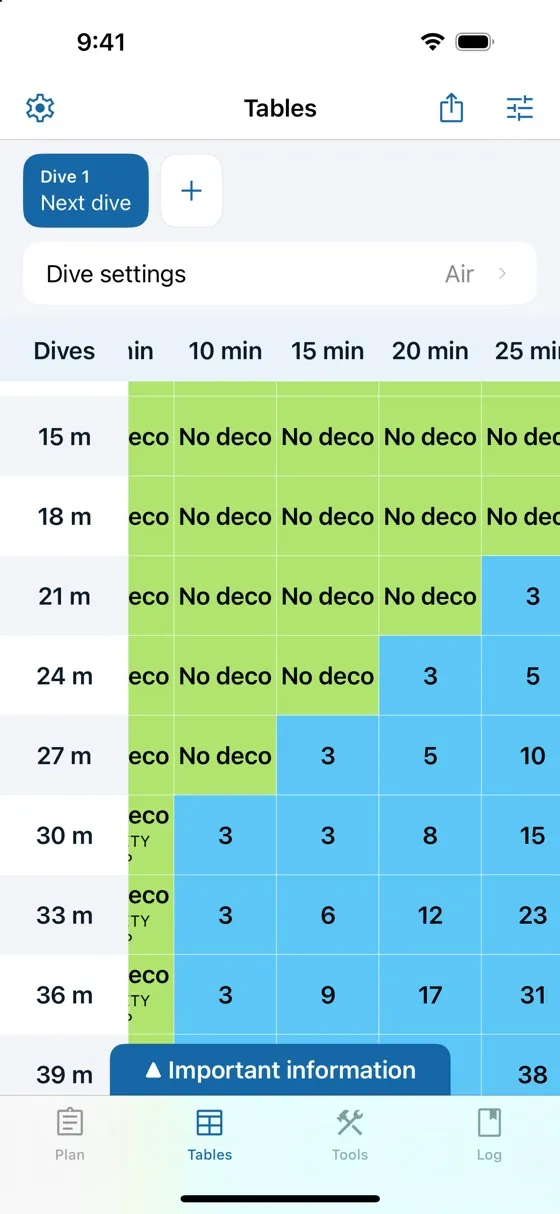
The Tables tab computes standard dives quickly. From the type of dive (open circuit or CCR), the gases, the conditions and the conservatism, it builds a table by depth and bottom time, and shows whether decompression stops are required. It also warns of ppO2, setpoint, CNS and OTU issues.
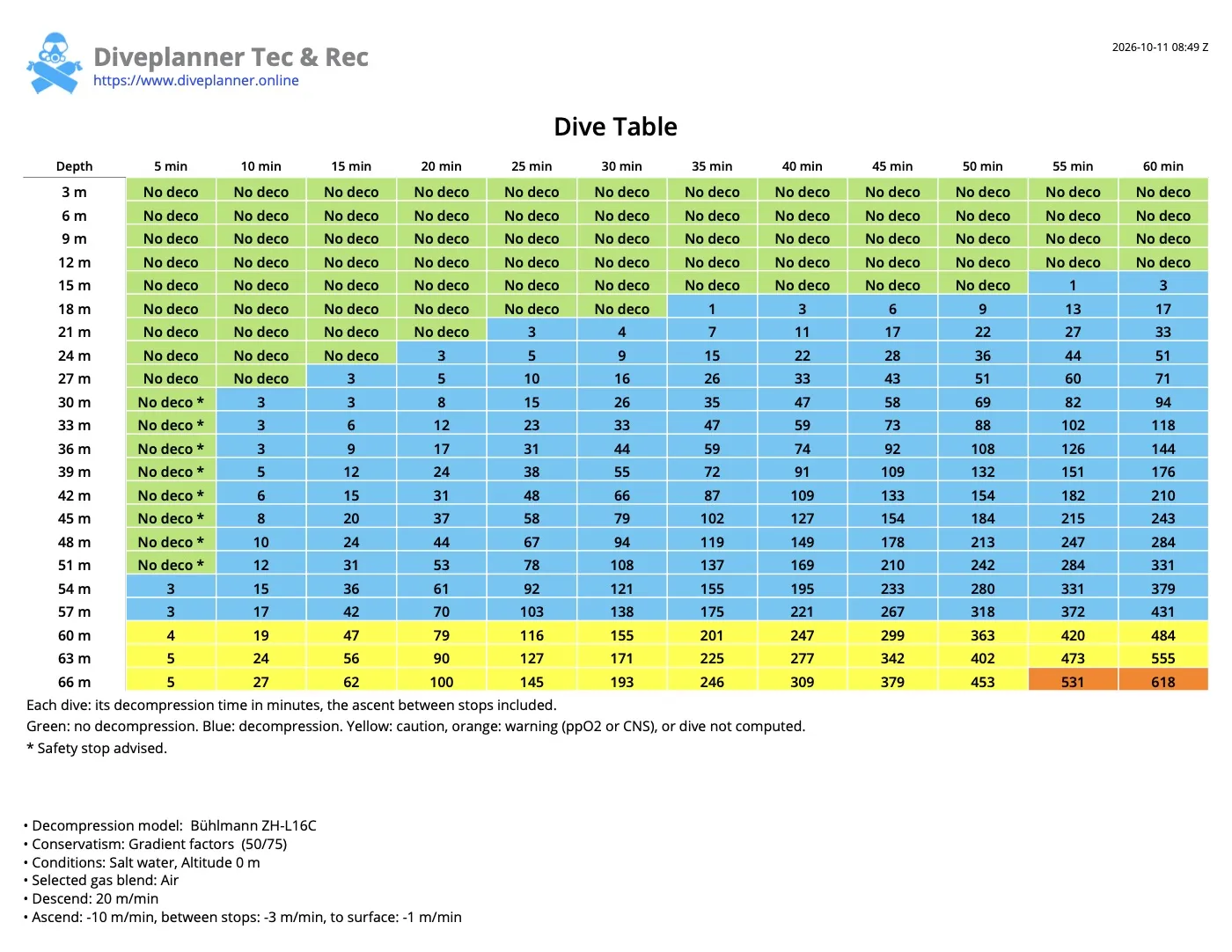
- Green cells are dives without mandatory decompression, for the current gases, conditions and conservatism. SAFETY STOP is recommended when the dive reached 30 m (98 ft) or deeper, or when a tissue ends the dive above 80 % of its M-value at the surface.
- Blue cells are dives with decompression. The value is the number of minutes of decompression stops, including the ascent between stops.
- Yellow cells are close to an oxygen limit: ppO2 above 1.44, CNS above 80 %, or a CCR ppO2 above the setpoint.
- Orange cells are beyond a limit: ppO2 above 1.6, CNS above 100 %, or a dive that cannot be computed.
Depths go by 3 m (10 ft), bottom times by 5 minutes.
Dive details
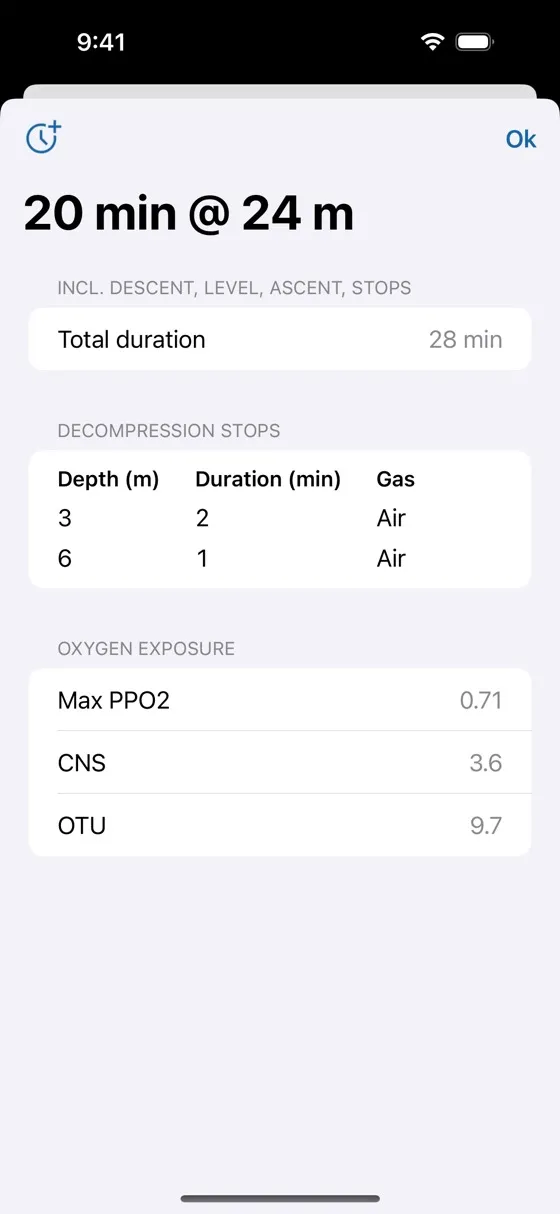
Tap a cell to see the details of that dive:
- Total duration, including descent, level, ascent and stops
- Decompression stops: depth, duration and gas
- Oxygen exposure: maximum ppO2, CNS and OTU
- Remarks and warnings, if any
The button at the top left of the details (Add to consecutive dives on Android) adds this dive to the dive day, as a previous dive one hour before: the table is recomputed with its residual saturation. You can also add a previous dive with +, by its depth and duration.
Updating the table
- Dive settings sets the breathing apparatus and the gases, the conservatism and the conditions (water type, altitude and pressure at sea level) of the table.
- The table is recomputed automatically when a parameter changes.
- The dives of the day above the table are the previous dives: the table accounts for their residual saturation and for the surface intervals. Tap the SI chip to change a surface interval; the ⋯ menu deletes all the previous dives.
- The Important information drawer lists the parameters used to compute the table.
- The share button of the toolbar shares or prints the table as a PDF document (see chapter 7).
5.The tools (Tools tab)
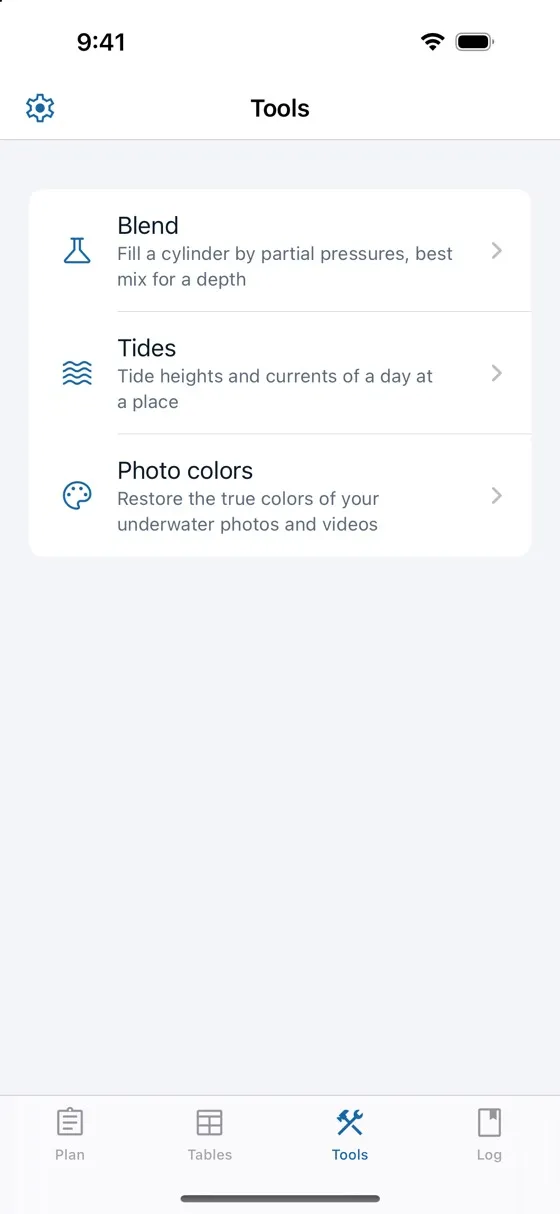
The Tools tab gathers the tools that go with the planning of a dive: the gas blender, to fill your cylinders, the tides, to choose when to dive, and the photo colors, for the pictures you bring back. Tap a tool to open it; the back button returns to the list.
Gas blender
The Blend tool computes a partial pressure fill: from the gas left in your cylinder to the blend you want.
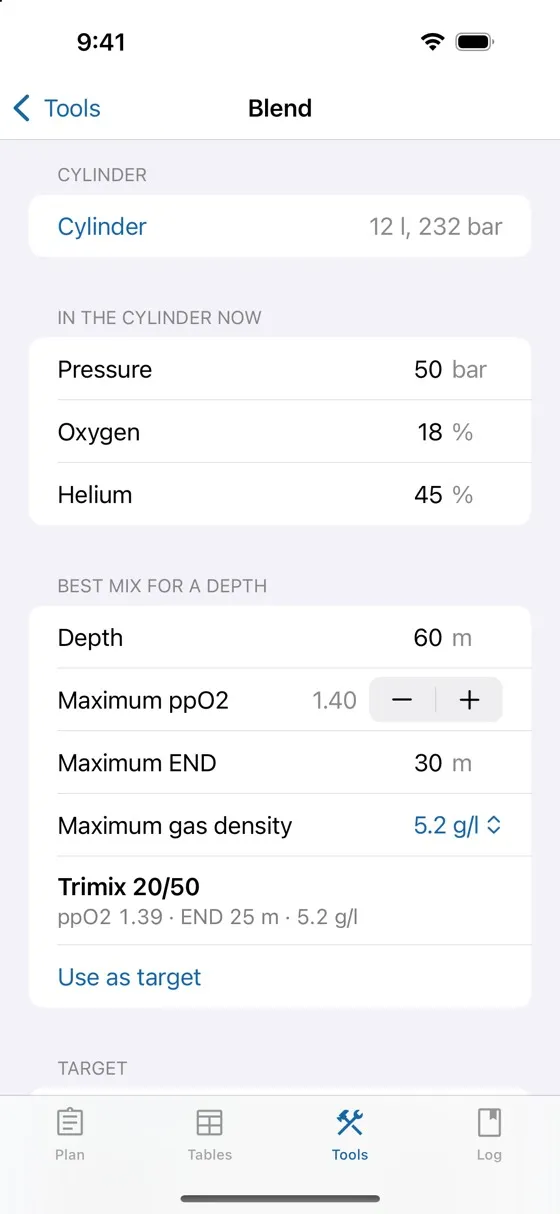
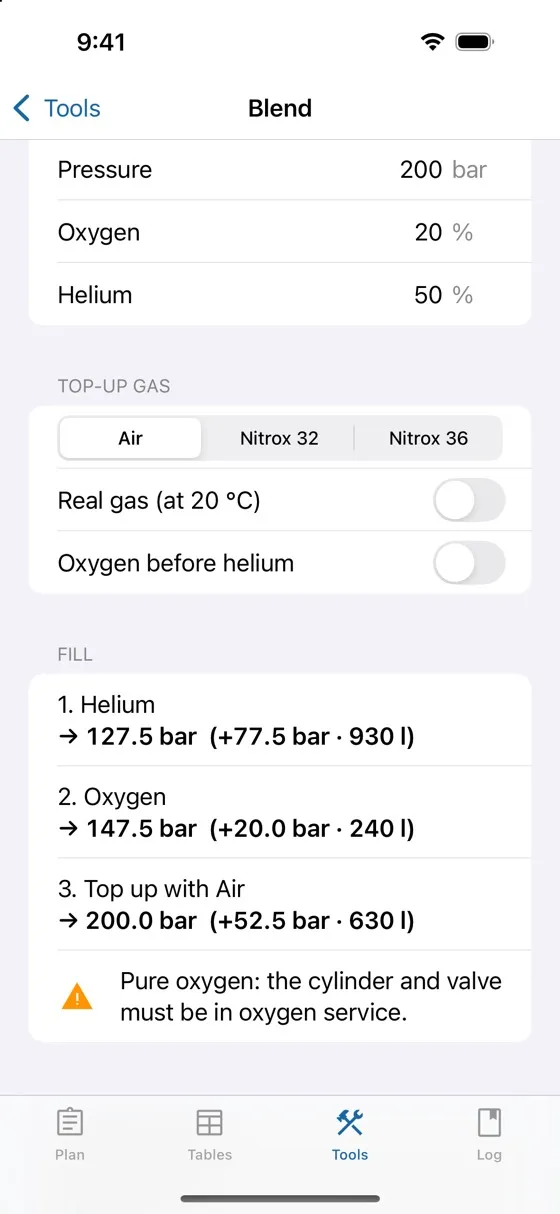
- Cylinder: its water volume and working pressure.
- In the cylinder now: the pressure left and its oxygen and helium fractions. A cylinder with too much gas, or the wrong gas, is bled first.
- Best mix for a depth: from a depth, a maximum ppO2, a maximum END and a maximum gas density (5.2 or 6.2 g/l), the best trimix or nitrox. Use as target makes it the blend to fill.
- Target: the pressure and the oxygen and helium fractions you want, or a common mix from the list.
- Top-up gas: Air, Nitrox 32 or Nitrox 36. Real gas (at 20 °C) accounts for the compressibility of the gases, which ideal gas laws ignore at high pressures. Oxygen before helium changes the order of the fill.
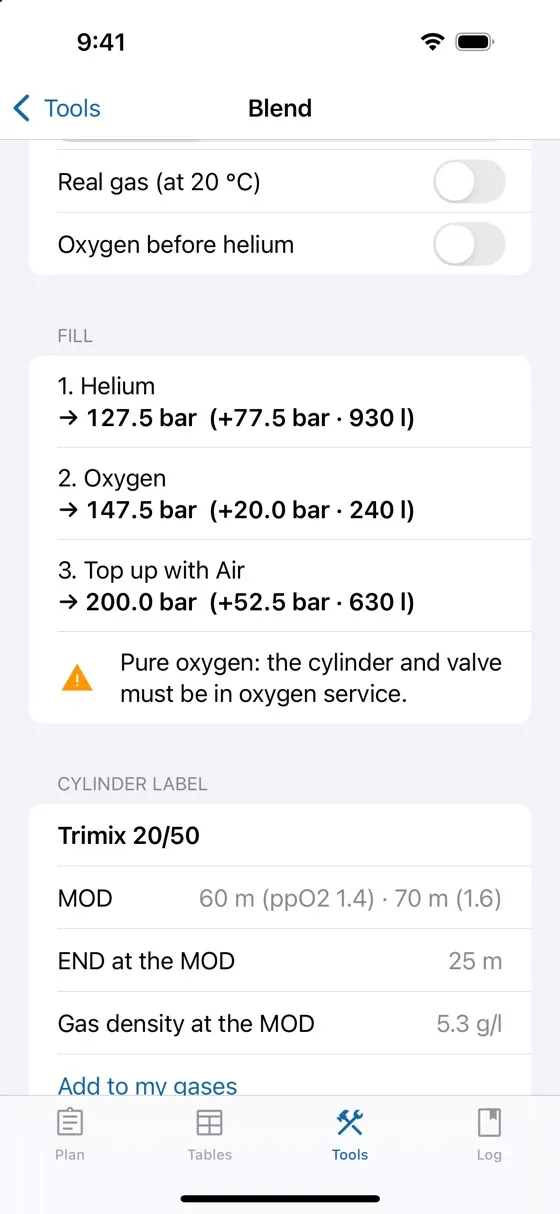
- Fill: the steps — helium, oxygen, then top-up — with the pressure to reach at each step, the pressure and the volume added, and the warnings (oxygen service, hypoxic mix).
- Cylinder label: the MOD at ppO2 1.4 and 1.6, the minimum depth of a hypoxic mix, the END and the gas density at the MOD. Add to my gases adds the blend to your favorite gases.
Tides
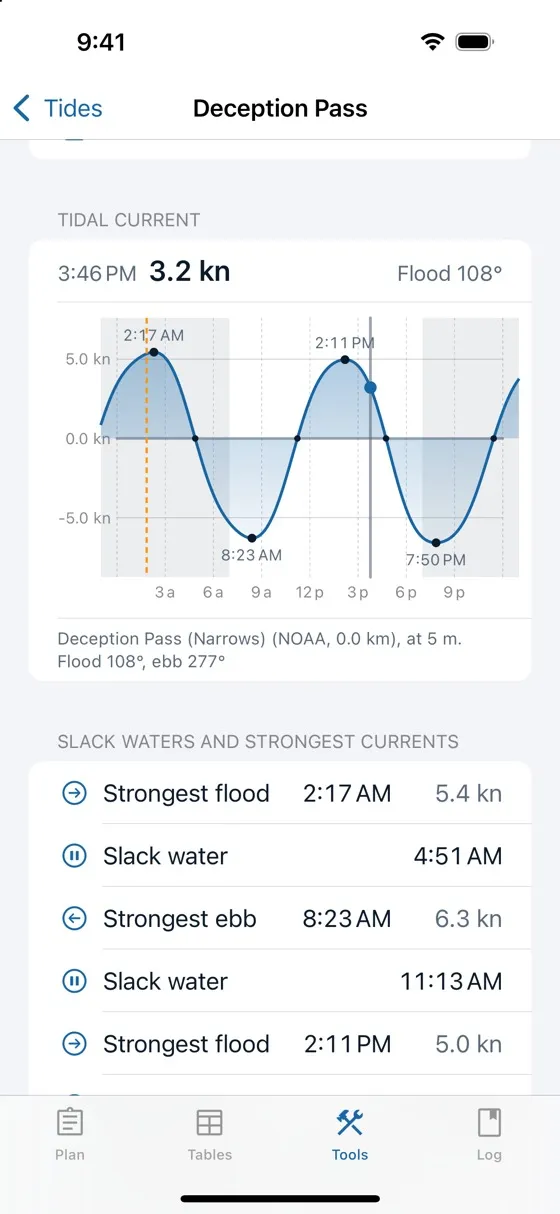
The Tides tool gives the tide and the tidal current of a day at a dive site: when the water is high or low, and when the current slackens, to dive a wreck, a pass or a drift dive at the right time.
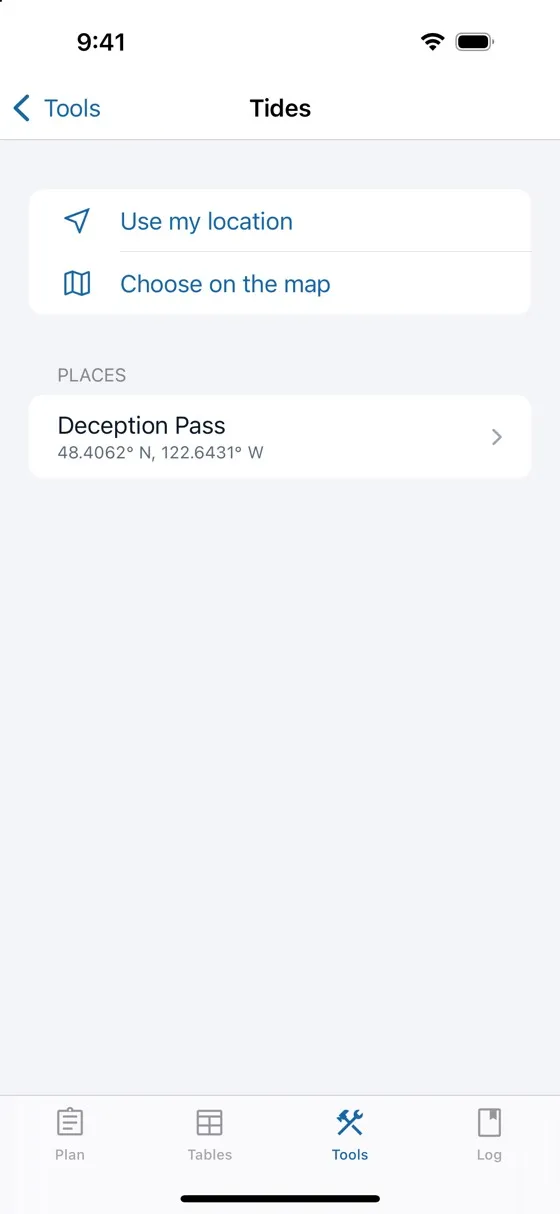
- Places: Use my location or Choose on the map adds a place (or opens the one within 500 m), named after the map. Swipe a place, or touch and hold it, to rename or delete it.
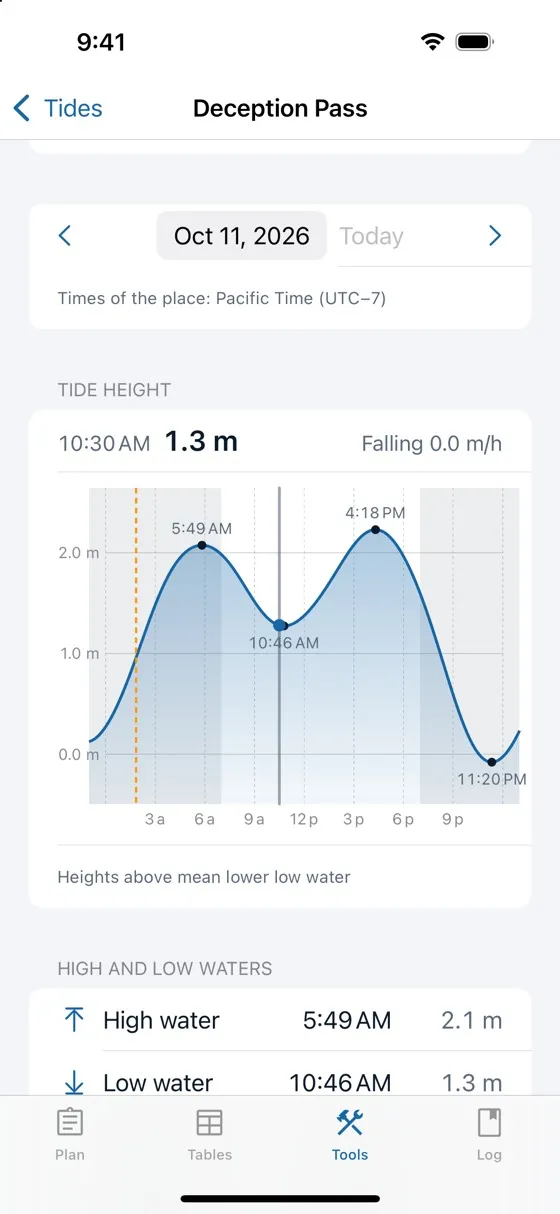
- Prediction: the nearest NOAA tide station (United States and its territories) within 25 km, or else the EOT20 global tide model, which predicts the tide anywhere at sea; tap to choose another station near the place. The reference level of the heights is the chart datum of the country (MLLW in the United States, otherwise LAT), or mean sea level.
- Day: the arrows, the date or Today. The times are those of the place, in its time zone, shown when it is not yours.
- Tide height: the curve of the day, the nights shaded, the high and low waters marked, now as an orange line. Touch the chart and move your finger to read the height at any time, to the minute: the time and the height show above your finger, the reading snaps to a high or low water near it, and a light tick marks every quarter of an hour. The reading stays when you lift your finger, with the trend (rising or falling, per hour).
- Tidal current: with a NOAA current station within 25 km, its current of the day in knots, flood above the line and ebb below, read the same way, with its direction; then the slack waters and the strongest flood and ebb, with their times.
Photo colors
The Photo colors tool restores the true colors of your underwater photos and videos. Water absorbs the red first, then the green, so pictures taken at depth turn blue or green and look hazy. Diveplanner analyses each picture and corrects its color cast, its haze and its missing red. Your originals are never changed: the corrected pictures are saved as new ones.
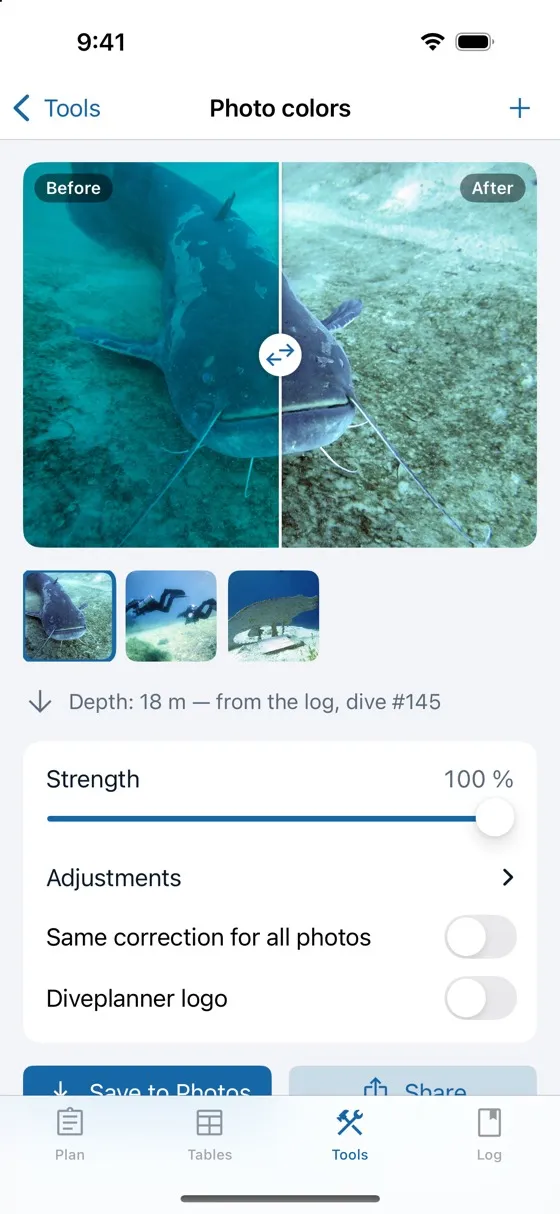
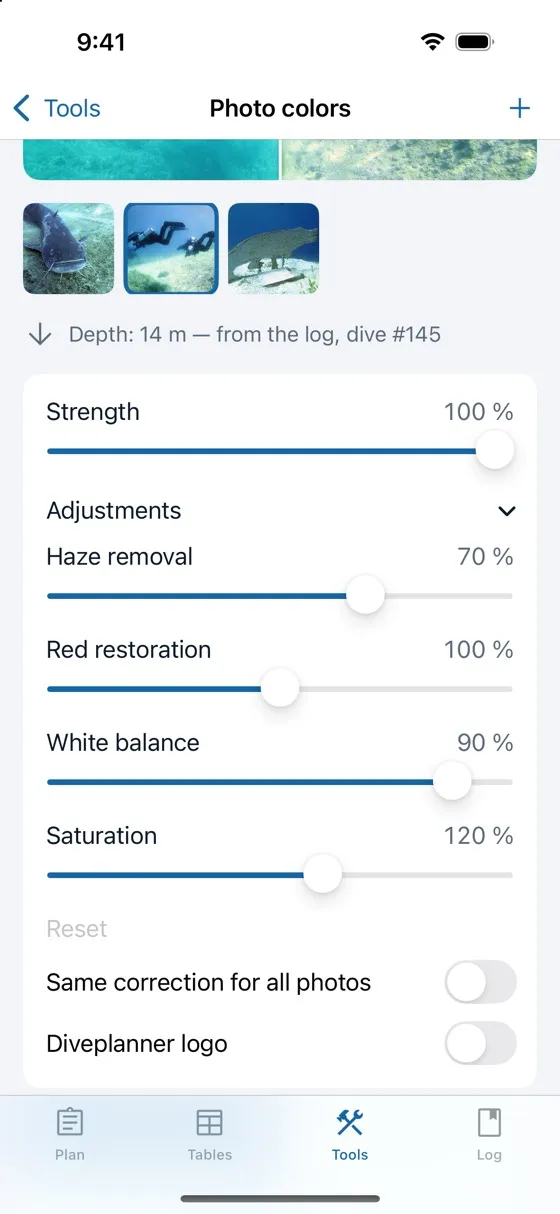
- Choose photos or videos: up to 50 at a time from your library; the + button adds more. With several pictures, tap a thumbnail to show it, or touch and hold it to remove it.
- Before and after: drag the line across the picture to compare the original, on the left, with the corrected picture, on the right.
- Depth: when a dive of your logbook was in progress as the photo was taken, the depth of its profile at that time guides the restoration of the red, which is missing more the deeper the photo was taken.
- Strength: from no correction (0 %) to the full correction (100 %). Adjustments fine-tunes the haze removal, the red restoration, the white balance and the saturation; Reset returns to the automatic correction.
- Same correction for all photos: with several photos, one correction for all of them, so that a series looks alike; otherwise each photo is corrected on its own.
- Diveplanner logo: adds the Diveplanner Tec & Rec logo in the bottom left corner of the corrected pictures.
- Save to Photos saves the picture shown into your library, Save all every picture, and Share sends them to another app. A video is corrected when it is saved or shared, which takes a while: its colors follow its scenes, its sound is kept, and an HDR video is converted to standard dynamic range.
6.The logbook (Log tab)
The Log tab keeps your dives: logged by hand, from a plan, or downloaded from your dive computer.
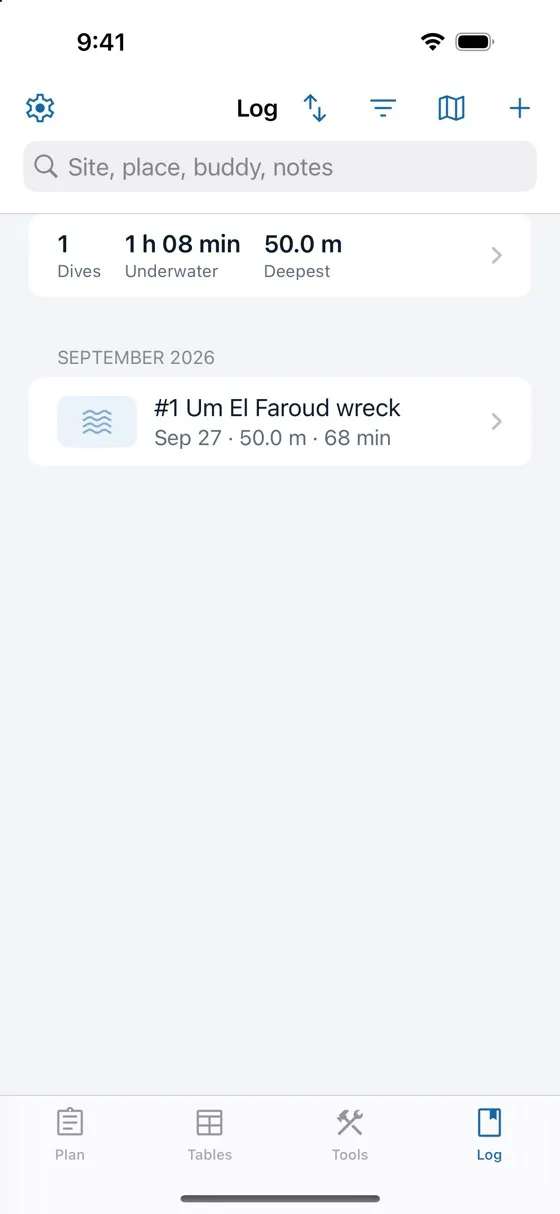
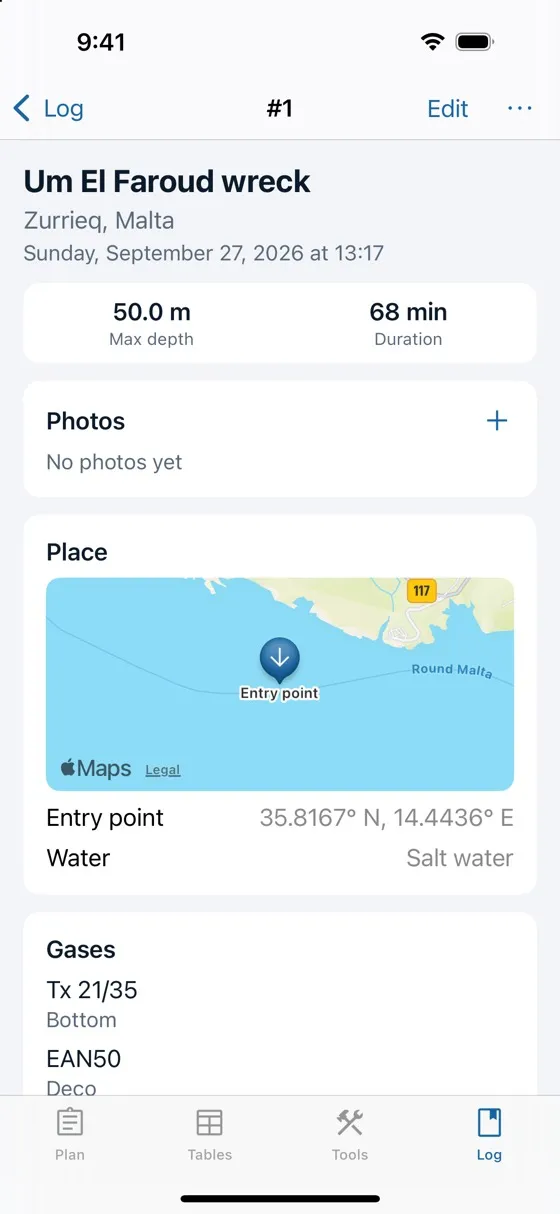
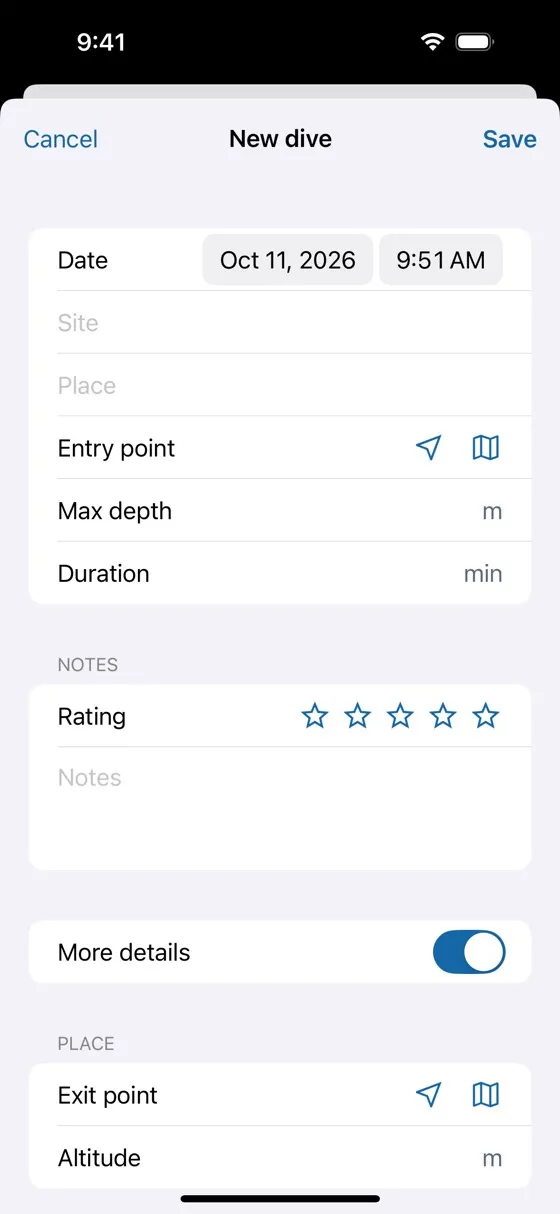
- + logs a dive by hand: date, site, place, entry and exit points on a map, maximum depth, duration, rating and notes. More details shows all the other fields of the dive, such as the exit point, the altitude, the water and the gases.
- Log this dive: the book button of the Plan tab creates a log entry from the plan, with its depth, duration, gases, cylinders and decompression settings.
- Dive computers: download your dives from a Shearwater dive computer over Bluetooth (Petrel 2, Perdix, Perdix AI, Nerd 2, Teric, Peregrine). Each dive comes with its profile, gases, mode (open circuit, CCR, or bailout logged as open circuit), gradient factors and decompression model. Only the dives your log does not have yet are downloaded; if a download stops (Bluetooth lost, app closed), the next one goes on where it stopped. Keep the phone near the dive computer: the screen stays on during a download.
- The profile of a downloaded dive shows the stops the dive computer asked for, and, below, the values it recorded: temperature, ppO2 and setpoint, CNS, tank pressures, gas time and NDL. Touch the profile to read them at that moment.
- Photos: add photos from the camera or your library to a dive; photos taken during the dive are suggested. Add captions and choose the cover photo.
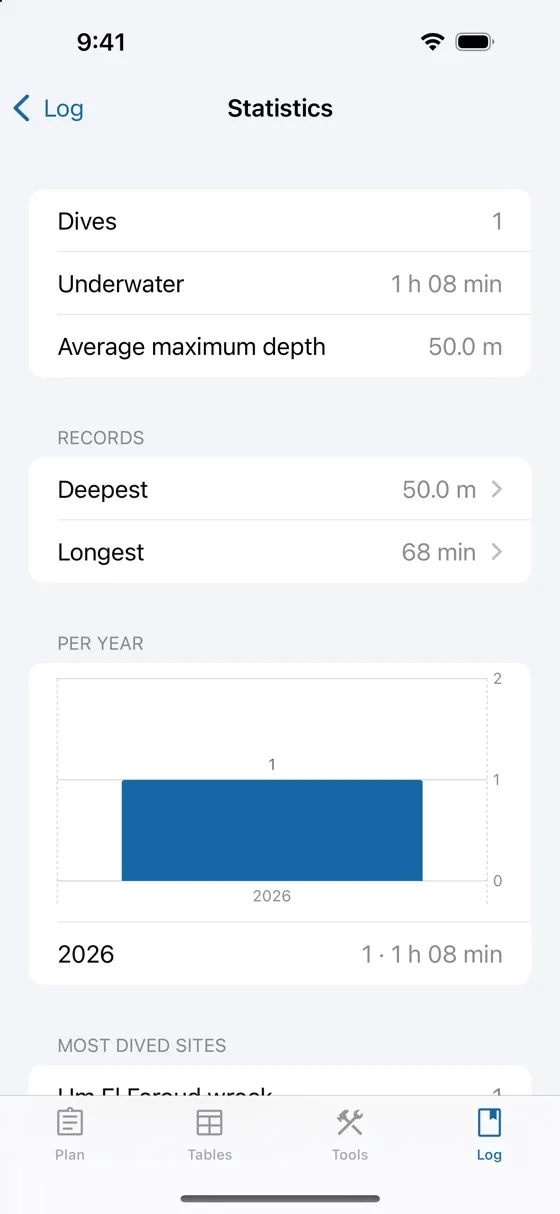
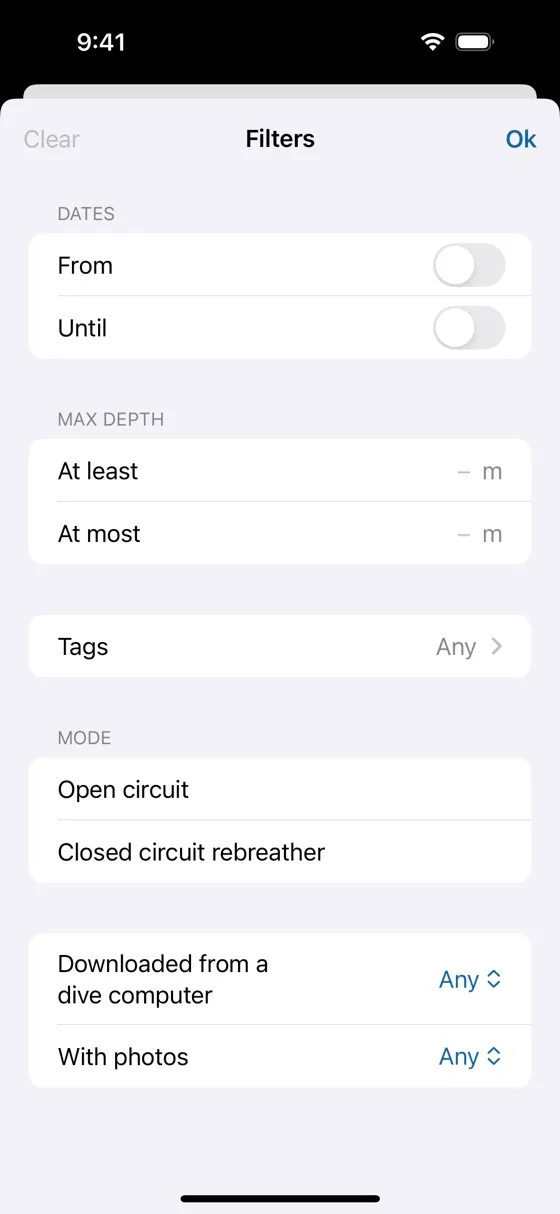
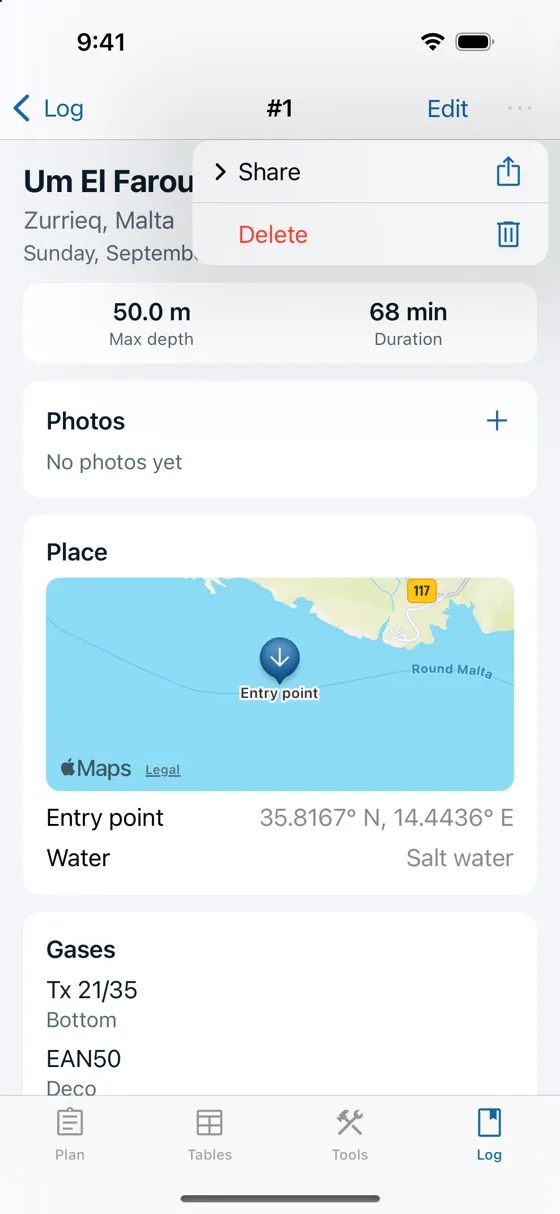
- Search by site, place, buddy or notes; the filter button narrows the list by dates, depth, duration, type of dive, dives downloaded from a dive computer or with photos.
- The summary at the top opens the statistics: totals, records, dives per year, most dived sites.
- The map button shows your dive sites on a map.
- Export your logbook, or a dive from its ⋯ menu: .divelog archive (with photos), UDDF 3.2, Subsurface XML, CSV, or a PDF logbook with buddy and instructor signature lines. Import .divelog, UDDF and Subsurface (.ssrf, .xml) files.
- Synchronisation: turn on Sync the log in the preferences to keep your dives and photos on all your devices — in your private iCloud on iOS, iPadOS and Mac, in a private folder of your Google Drive on Android.
7.Sharing and printing dive schedules and tables
You can share or print ready-to-cut dive schedules, and your dive tables.
- Tap the share button in the toolbar of the Plan tab, then PDF schedules. Plan file (.diveplan) sends the plan itself instead, which your buddy opens and changes in Diveplanner (see Saved plans in chapter 2).
- Choose a destination application, Print, or a location to save the document.
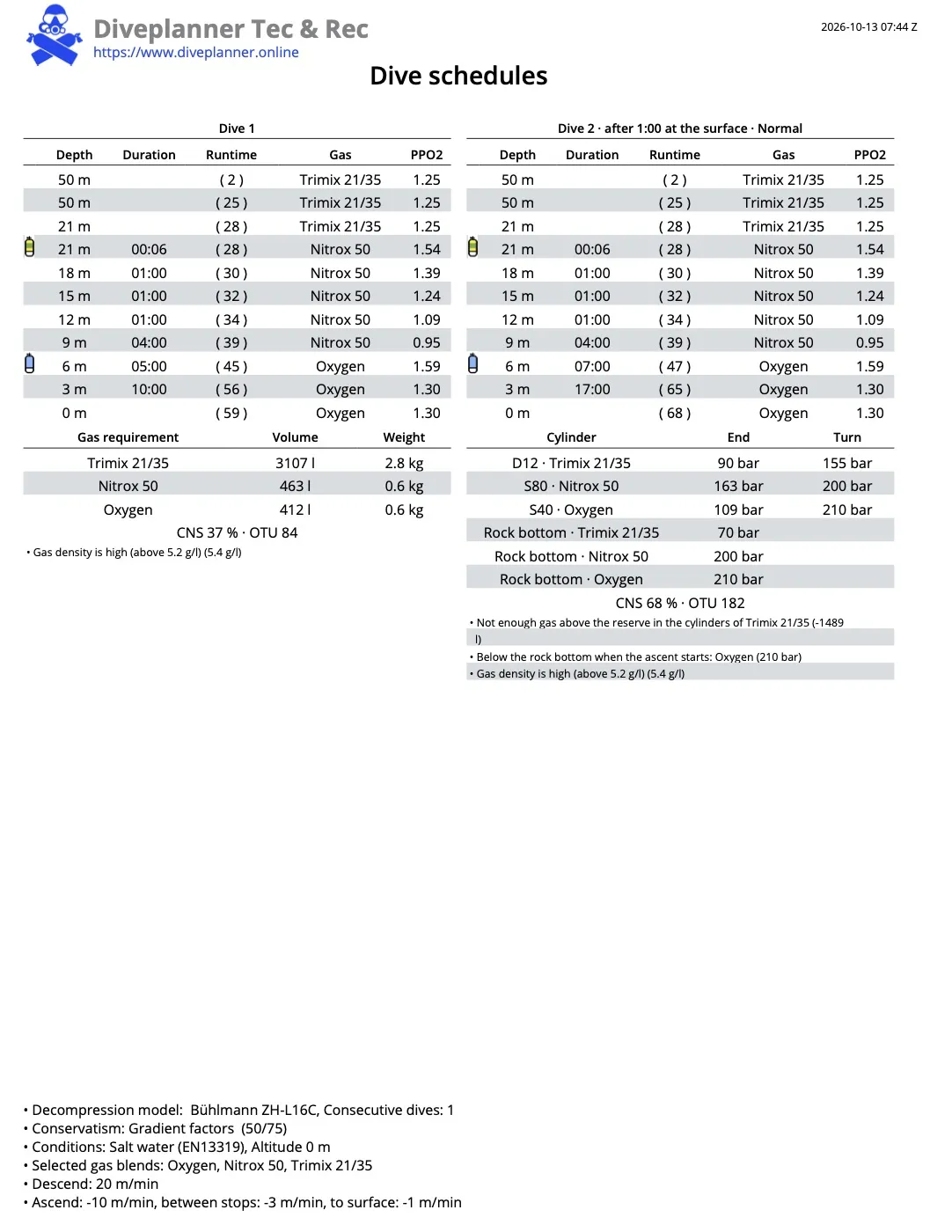
- A PDF document is generated with, for each dive of the day (the previous dives first, with the surface intervals), all its plans — normal, contingency, GF100, lost gas and bailout — each with:
- its schedule, with the gas switches
- the gas requirement by volume and weight or, with cylinders, the end and turn pressures of each cylinder and the rock bottom of each gas
- CNS and OTU, accumulated over the day
- its warnings, most severe first
The dive table
The share button of the Tables tab makes a PDF document of the table, on one landscape page: the depths down the side, the bottom times across, each dive with its decompression time in the colours of the screen (no decompression, decompression, caution, warning) and * where a safety stop is advised. After previous dives, the table is titled with its place in the day and the previous dives are listed. At the bottom, the parameters of the computation.